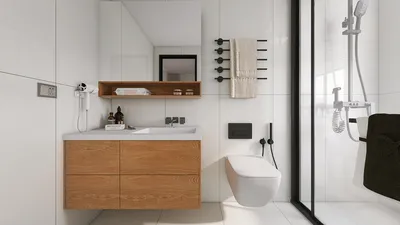


If you're aiming to boost your productivity, understanding how to open several models in 3D Viewer can significantly improve your workflow. Whether you're a designer reviewing multiple iterations of a project or a hobbyist wishing to experiment with various designs, being able to see several models at once fosters better comparison and informed decision-making.
Here’s a straightforward guide to help you easily master this technique. Begin by ensuring you have the most updated version of the 3D Viewer software installed on your device. Often, compatibility problems arise from outdated applications, so remember to check for updates regularly to enhance your user experience.
Steps to Open Multiple Models:
1. Start by launching 3D Viewer. After the application opens, navigate to the file menu to select your first model. You can typically do this by clicking 'File' followed by 'Open', or you can simply drag and drop the model file directly into the viewer.
2. Once your initial model is loaded, follow the same steps to add additional models. If you're operating in a Windows environment, you can often select multiple files at once by holding down the 'Ctrl' key while highlighting the files. This will open all selected models in separate windows, letting you view them simultaneously.
3. Arrange your models within the workspace. Ensure they are clearly positioned in your viewport, which enables you to easily recognize and assess each model while toggling between them.
4. Take advantage of the features in 3D Viewer to manipulate and compare the models. You can independently rotate, zoom, and pan each model, which is especially beneficial when making design decisions.
5. Finally, after completing your comparisons, you can save your chosen models for later reference or additional editing directly within the 3D Viewer.
Why Open Multiple Models?
Opening several models paves the way for comparisons that ultimately lead to superior design outcomes. This approach allows you to assess scale, color variations, and various design elements effectively. It's also beneficial for clients to visualize the different options placed side by side, enhancing their understanding of the designs.
Tips for a Better Experience:
- Ensure that your system’s RAM and GPU are capable of smoothly handling multiple 3D models. Performance may significantly decline when working with intricate geometries.
- Implement layers to distinguish between various models, making navigation simpler and more organized during comparisons.
FAQ
Q: Can I open multiple file types in 3D Viewer?
A: Indeed, 3D Viewer supports a variety of file formats. Just be sure to verify compatibility when opening different models.
Q: What should I do if I experience lag while trying to open multiple models?
A: Consider simplifying the models or upgrading your hardware for enhanced performance.
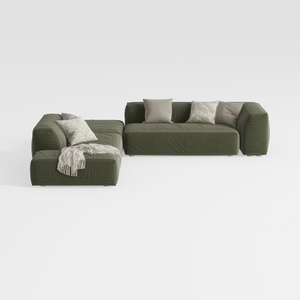
Minimalist Modern Fabric L Shaped Sectional Sofa with Throw Pillows 3D Model
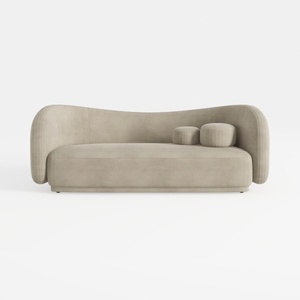
Minimalist Velvet Curved Living Room Sofa 3D Model

Minimalist Neutral Fabric Irregular Coffee Table 3D Model
Homestyler is your go-to online home design platform! With its user-friendly design tool, stunning 3D renderings, and an array of DIY video tutorials, you can effortlessly create your dream space, no matter your experience level. Start designing today!
Дизайн сейчас бесплатно
































