


Transforming a 3D model into a 2D representation using AutoCAD can significantly enhance your design workflow. Whether you're creating a presentation or preparing detailed plans, mastering this process is crucial. With a clear understanding of the steps involved, you can execute this task efficiently and effectively.
Grasping the Fundamentals of 3D to 2D Conversion
To convert 3D models to 2D in AutoCAD, it's essential to familiarize yourself with the basic tools at your disposal. AutoCAD features numerous built-in functions that facilitate seamless transitions between 3-dimensional designs and their 2-dimensional counterparts. Key commands such as FLATSHOT, EXPORT, and VIEWBASE are vital for optimizing your productivity.
Let’s delve into some key techniques:
Applying the FLATSHOT Command
One of the most reliable methods for generating 2D illustrations from 3D models is the utilization of the FLATSHOT command. This function generates a 2D depiction of a 3D object within AutoCAD.
Begin by opening your 3D model in AutoCAD.
Enter FLATSHOT into the command line.
Select the object that you would like to convert.
Identify where you want the output drawing to be saved.
After this, AutoCAD will project your 3D elements onto a 2D plane. This method is particularly advantageous for architectural plans and product illustrations, as it preserves the proportions and intricate details of the original model.
Exporting 3D Models to 2D Drawings
For those seeking a more direct approach, exporting your 3D model can also produce satisfying results.
Open the desired 3D model file in AutoCAD.
Navigate to the File menu and select the Export option.
Select the format in which you wish to save the file; DWG or DXF files are ideal for 2D representations.
Decide on the view angle for your 2D drawing.
This approach allows for a clean and well-preserved presentation in the 2D format, making it valuable for technical documentation.
Utilizing VIEWBASE for Projected Drawings
The VIEWBASE command is another effective tool for creating 2D views from 3D models.
Load your 3D model into AutoCAD.
Enter VIEWBASE into the command line.
Select the model and specify the desired type of 2D view (Top, Front, Side).
This method generates projected drawings, which are especially beneficial for assembling and detailing technical drawings.
Conclusion: Final Steps and Best Practices
Once you have converted your model, ensure to verify the scale accuracy and adjust the 2D drawing using DIMENSION commands to reflect all measurements precisely.
By understanding these commands and techniques, you can skillfully navigate the transition from 3D to 2D in AutoCAD, enhancing your workflow and the quality of your design presentations. Additionally, consider exploring tools like Homestyler for further design insights.
Frequently Asked Questions
Q: Is it possible to convert my model while preserving detail? A: Absolutely, leveraging commands such as FLATSHOT and VIEWBASE ensures that the essential details in your models are maintained during the transition to 2D.
Q: What file formats should I use? A: It is advisable to utilize DWG or DXF formats for optimal results when exporting 2D drawings from your 3D models.

Minimalist Solid Walnut Wood Console Table 3D Model
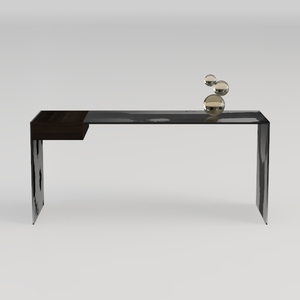

Modern Minimalist Black Glass Walnut Console Table 3D Model

Modern Solid Wood Metal Office Desk With Upholstered Chair And Fabric Ottomans 3D Model
Looking to transform your home? Homestyler combines an easy-to-use online design tool with stunning 3D renderings and an extensive collection of design projects. Plus, its DIY video tutorials make it simple to turn your vision into reality. Start designing your dream space today!
Progetta ora GRATIS
































