


Creating and rigging 3D models in Blender is a crucial skill for animators, game developers, and designers. This process involves crafting a skeleton, or armature, that allows your model to move and deform naturally. This detailed guide will take you through every aspect of rigging, from initial preparation to troubleshooting tips, enabling both newcomers and experienced Blender users to excel at this vital technique.
1. Preparing Your Model
Before you start the rigging process, it’s essential to have a clean model. Remove any non-manifold geometry, apply transformations with Ctrl+A, and verify scale and rotation settings. A model with a symmetrical and well-structured mesh greatly simplifies the weight painting and deformation processes.
2. Adding an Armature
Switch to Object Mode, press Shift+A, and select Armature > Single Bone. Once in Edit Mode, extrude more bones by pressing E, and position them according to the anatomy of your model, paying close attention to joints and their natural pivot points. Remember to assign distinct names to each bone for easy reference later on.
3. Parenting the Mesh
Back in Object Mode, first select your mesh and then shift-select the armature. Press Ctrl+P and select “With Automatic Weights”. Blender will automatically create vertex groups by assigning bone influences to your mesh. While automatic weights work well for simple figures, some refinement is typically necessary.
4. Weight Painting & Fine-Tuning
Switch to Weight Paint mode to fine-tune the bone influences. You can use the brush tool to refine transitions or resolve deformation issues, particularly in areas like elbows and knees. This adjustment is essential for achieving realistic movements in your animations.
5. Adding Controls and Constraints
For those delving into advanced rigging techniques, consider integrating inverse kinematics (IK) and constraints. Introducing IK handles will enhance limb posing, limit unnatural rotations, and facilitate facial rigging or props. Such enhancements significantly increase the versatility of your rig throughout the animation process.
6. Testing and Animation
Utilize Pose Mode to position your rig and observe for any deformations. As you test with simple animations, look for issues such as clipping or improper stretching, and address these using weight paint adjustments or repositioning bones.
Throughout my extensive work on design presentations and 3D visualizations, I've found that utilizing effective planning tools can enhance your workflow significantly. Tools like the 3D floor planner provide the flexibility and precision needed during the conceptual phase, aiding in the better integration of your rigged models when depicting spatial interactions within interior scenes. This design-focused approach ensures that your 3D assets not only animate fluidly but also integrate seamlessly into their environments.
Tips 1:
Prioritize your mesh topology before diving into rigging, especially around joint areas. Clean topology is vital for smooth deformations. For intricate character animations, consider employing Blender’s Rigify add-on for automated rig structures, which can save you considerable time while achieving professional-quality results.
FAQ
Q: What distinguishes rigging from skinning in Blender?
A: Rigging refers to the creation of the skeletal framework, whereas skinning pertains to the assignment of mesh vertices to the bones—typically accomplished through weight painting—to ensure proper deformation.
Q: Is it possible to rig imported models like FBX or OBJ?
A: Yes, you can rig imported models provided the mesh is appropriate, meaning it has clean geometry, by using Blender’s armature and weight tools.
Q: How can I correct unwanted mesh deformations post-rigging?
A: Adjust the bone influences in Weight Paint mode to ensure that each vertex group aligns correctly with its assigned bone.
Q: Are there shortcut methods for creating rigs in Blender?
A: Definitely! The Rigify add-on in Blender allows you to generate sophisticated pre-made rigs suitable for humanoid and animal models, expediting your workflow.
Q: Why is my mesh stretching inappropriately when I manipulate bones?
A: This often indicates that the weighting or bone placement needs adjustment—ensure that there is proper topology and weight distribution around the joints.
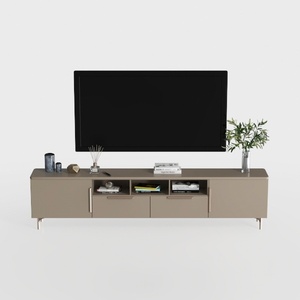
Modern Minimalist Solid Wood TV Stand Cabinet with Storage 3D Model
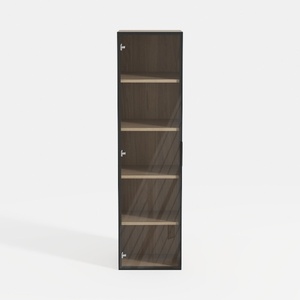
Modern Black Frame Solid Wood Open Shelf Tall Cabinet 3D Model
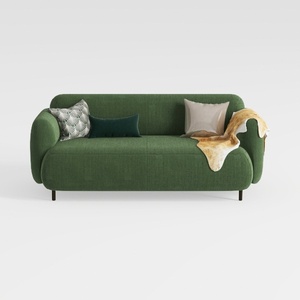

Minimalist Dark Green Fabric Loveseat Sofa with Decorative Pillows 3D Model
Homestyler is your go-to platform for effortless home design. With its intuitive online design tool, stunning 3D renderings, and a wealth of DIY tutorials, you can easily create and visualize your perfect space. Transform your home design ideas into reality today!
Desain sekarang Gratis
































