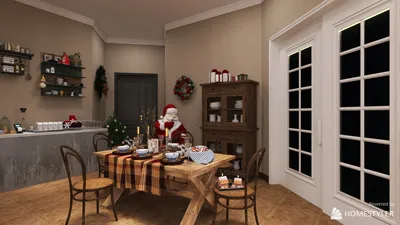


Creating a 3D model using Photoshop CS6 unlocks a plethora of creative opportunities. Whether you’re interested in designing distinctive items for your creative endeavors or simply want to delve into the art of 3D modeling, this comprehensive guide will walk you through the essential steps to kickstart your 3D creation journey within Photoshop, while also introducing how tools like Homestyler can enhance your 3D design experience.
Step 1: Setting Up Your Workspace
Before diving into modeling, it’s crucial to properly configure your workspace. Start by launching Photoshop CS6 and selecting the 3D workspace from the workspace menu. This will equip you with the necessary tools and panels for effective 3D modeling, and is particularly useful when incorporating features from platforms like Homestyler.
To enable the 3D capabilities, navigate to Window > Workspace > 3D. This will reveal the 3D panel, essential for managing your 3D layers efficiently.
Step 2: Creating a New 3D Layer
To initiate your first 3D model, go to 3D > New 3D Layer From File. You can import a 2D image or open a file that already contains 3D elements. Photoshop CS6 supports a broad range of 3D formats such as STL and OBJ, ideal for integration with tools like Homestyler for enhanced design functionalities.
After your 3D layer is established, delve into the 3D panel where you can manipulate your model, fine-tune lighting, and modify textures to align with your creative vision.
Step 3: Editing Your 3D Model
Photoshop CS6 provides a variety of tools for editing your 3D model. Utilize the 3D tools on the left toolbar to rotate, scale, or position your model as needed. This includes selecting specific parts of the model, allowing targeted modifications without impacting the entire object.
Enhance textures by applying materials from the 3D panel. Opt for different material types and adjust attributes such as color, shine, and bump to achieve your desired appearance. Customizing these elements is fundamental to distinguishing your model from others, akin to the user-friendly options available in Homestyler.
Step 4: Rendering Your Model
Once you are satisfied with the adjustments made to your model, proceeding to render it is the next step. Rendering will yield a high-resolution image of your 3D creation. Choose 3D > Render 3D Layer to watch your model transform into an eye-catching visual. Don't forget to refine the render settings to enhance quality if necessary.
Step 5: Saving Your Project
After the rendering process is complete, ensure that you save your project. Go to File > Save As to maintain your work in Photoshop format, enabling you to revisit and make additional changes in the future.
FAQ
Q: What types of objects can I create in Photoshop CS6?A: You can craft a variety of 3D objects, which include text, geometric shapes, and imported 3D files, supporting formats like STL and OBJ.
Q: Is creating 3D models in Photoshop difficult?A: Initially, it may seem challenging, but with consistent practice, you’ll find the tools to be intuitive and powerful, especially when complemented with resources like Homestyler for inspired design.

Minimalist Walnut Fabric Loveseat Sofa 3D Model
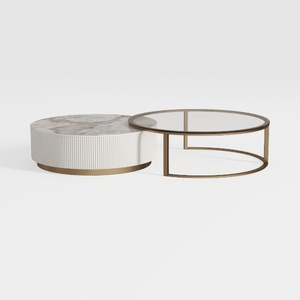

Modern Marble Gold Metal Glass Round Nesting Coffee Table 3D Model
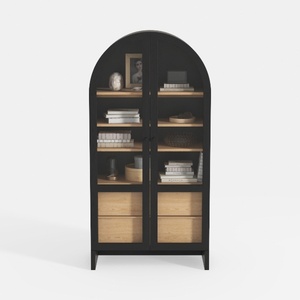
Modern Black Oak Arched Glass Display Cabinet 3D Model
Discover your interior design potential with Homestyler! This user-friendly online platform offers powerful design tools, stunning 3D renderings, and a wealth of DIY video tutorials. Whether you're a beginner or an experienced designer, Homestyler makes creating beautiful spaces simple and inspiring.
Diseño ahora GRATIS
































