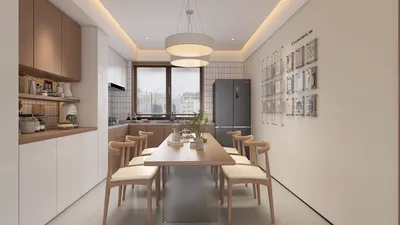


If you've ever been curious about how to design your own 3D models for Adobe Dimensions, you're in the right spot! Crafting custom 3D designs can significantly enhance your projects, giving them a distinctive touch.
Begin with some intuitive 3D modeling tools. Renowned options like Blender, SketchUp, and Tinkercad are excellent for beginners, providing easy-to-navigate interfaces. After selecting your preferred software, embark on the creation journey.
1. Selecting Your Modeling Software
What's your current skill level? For those just embarking on their modeling journey, Tinkercad is ideal for simple designs and effortless adjustments. Conversely, if you're looking for more complex functionalities, Blender boasts an extensive array of tools to inspire your creativity.
Consider a project idea you wish to explore—maybe a one-of-a-kind vase or an innovative lamp? Drafting your ideas can greatly clarify your vision before diving into the modeling process.
2. Fundamental Modeling Techniques
While designing your 3D model, initiate the process with basic geometric shapes and gradually refine your creation. Experiment with techniques like extrusion, scaling, and rotation to bring your object to life. Feel free to innovate; the most remarkable designs often stem from unexpected alterations!
Have you ever felt stuck while designing? Taking a break or seeking inspiration from existing 3D artworks online might be just the remedy you need.
3. Applying Texture and Color to Your Model
After shaping your object, it’s time to infuse it with textures and colors. Most modeling software enables you to apply materials that imitate real-world textures like wood or metal. Consider how your model integrates into your overall project—what colors will amplify its aesthetic appeal?
Bear in mind the mood you aim to convey through your design. Warm hues can convey comfort while cooler tones offer a contemporary and refreshing feel.
4. Exporting Your Model for Use in Adobe Dimensions
Once you’re content with your creation, ensure it’s formatted correctly for Adobe Dimensions. Export your model using .OBJ or .FBX file formats, as these are compatible with Adobe's software solutions.
Have you thoroughly reviewed your export settings? Occasionally, you might face scaling or orientation challenges—ensure your model is appropriately positioned before proceeding with the export.
5. Importing into Adobe Dimensions
Launch Adobe Dimensions and import your model without delay. Use this chance to tweak lighting and positioning, observing how your model interacts within its surroundings. This phase is crucial for refining and perfecting your design.
Do you have any invaluable tips or tricks for modeling? Don’t hesitate to share your insights; they could assist others in their design endeavors!
FAQ
Q: Which software is considered the best for creating 3D models for Adobe Dimensions? A: Blender is favored for its no-cost access and powerful features, while Tinkercad is ideal for newcomers.
Q: How can I ensure my models appear appealing in Adobe Dimensions? A: Focus on lighting, materials, and scale. Experiment with various settings within Dimensions for optimal results.



Homestyler is your ideal home design companion! This user-friendly online platform offers a fantastic design tool, stunning 3D renderings, and a wealth of inspiring design projects. With helpful DIY video tutorials, you'll easily transform your vision into reality—perfect for beginners and seasoned designers alike!
Progetta ora GRATIS
































