


Incorporating 3D models into Clip Studio Paint (CSP) can greatly elevate your artistic endeavors, offering a more dynamic and flexible creative process. Whether you are an emerging artist hoping to introduce new dimensions to your work or a seasoned professional aiming to enhance efficiency, mastering the 3D model import technique is essential.
To begin, ensure your selected 3D model is saved in a format that is compatible with CSP. The software accommodates various file types, so make sure your model meets these requirements. The most commonly supported formats are OBJ and FBX, which are extensively utilized in the industry.
Step 1: Optimize Your 3D Model
Before importing, it is recommended to refine your 3D model for optimal results. This process includes lowering the polygon count and ensuring that all textures are accurately mapped. Software such as Blender or Autodesk Maya are excellent choices for fine-tuning your model, making it lightweight and easier for CSP to manage.
Step 2: Importing into CSP
Open CSP and navigate to the 'File' menu located at the top left of your screen. Choose the 'Import' option, which allows you to select the prepared 3D model file. Once selected, CSP will facilitate the import process, adjusting the model for your artistic needs. You might need to scale the model after importing to ensure it fits seamlessly with your existing canvas dimensions.
Step 3: Making Use of Your 3D Model
With your model successfully imported, utilize CSP's extensive toolset to modify the model as required. You can rotate, resize, and position it within your workspace, enabling a smooth integration of the 3D element into your artwork. This flexibility is vital for achieving the artistic effect you desire.
Additionally, consider saving your workspace as a template for future projects. This method will simplify your workflow by providing quick access to your 3D models without the need for repetitive imports.
Successful Importing Tips
Acquaint yourself with CSP's interface and the tools designed for 3D model manipulation. Feel free to experiment with the various lighting and rendering options within CSP to enhance your design's visual appeal.
FAQ
A: CSP supports multiple file formats, including OBJ and FBX, among others. Always confirm that your model is compatible with CSP before proceeding with the import.
A: Certainly! Once your model is imported, CSP provides you with the means to manipulate the 3D model through rotation, scaling, and positioning to match your creative intent.
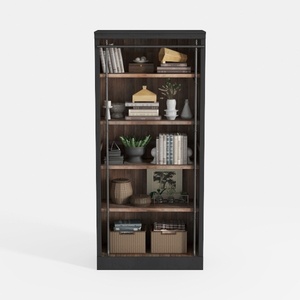
Industrial Solid Wood Metal Bookshelf Storage Display 3D Model
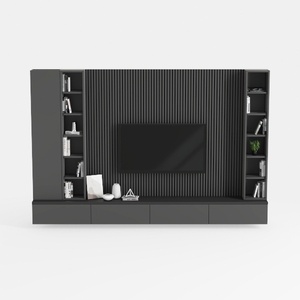
Modern Minimalist Black Solid Wood TV Wall Cabinet With Storage Shelves 3D Model
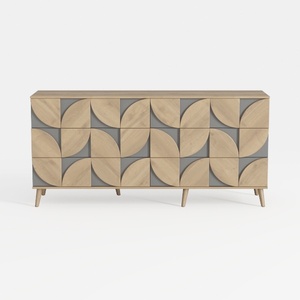
Modern Geometric Pattern Solid Wood Sideboard Cabinet 3D Model
Discover the joy of home design with Homestyler! This online platform boasts an easy-to-use design tool, stunning 3D renderings, and a treasure trove of design projects and video tutorials. Whether you’re a novice or a pro, bring your creative ideas to life effortlessly!
立即免费设计
































