


Incorporating 3D models into Unreal Engine 4 is crucial for any game developer or designer aiming to actualize their creative concepts. Whether you are developing a game, creating a simulation, or designing architectural visuals, mastering the import process of your 3D assets can greatly streamline your workflow and save valuable time.
Here’s a comprehensive guide to help you successfully import your 3D models into Unreal Engine 4, ensuring a smooth integration of your imaginative ideas.
Step 1: Prepare Your Model
Before starting the import process, make sure your 3D model is optimized for Unreal Engine. Popular formats commonly used include FBX and OBJ. It’s important to verify the model's scale, UV mapping, and texture settings. Proper optimization not only enhances the visual quality of your model but also boosts its performance in Unreal Engine.
Step 2: Launch Unreal Engine 4
Start by launching Unreal Engine 4, and either create a new project or open an existing one. Once in the project environment, head to the Content Browser section in preparation for your import.
Step 3: Import Your Model
Within the Content Browser, right-click and select "Import to /Game". Locate and choose your prepared 3D model file (like FBX or OBJ). When your file is selected, an Import Options window will prompt you. Ensure that you check the appropriate settings such as importing materials and textures to achieve a full asset integration.
Step 4: Adjust Import Settings
At this stage, it’s vital to scrutinize the import settings. You may want to modify settings for normals, tangents, and decide if combining meshes is necessary. This step plays a pivotal role in determining how your model will appear and function within the engine’s environment.
Step 5: Place Your Model in the Scene
Once the import process is complete, find your model in the Content Browser. Drag and drop it into your scene. Make any necessary adjustments to its position and scale to ensure it fits seamlessly into your game world or visual environment, thus preparing it for immediate interaction.
Step 6: Configure Materials and Textures
If the model is accompanied by materials or textures, some modifications might be needed. Open the Material Editor by double-clicking on the materials linked to your model. Conduct a thorough review to confirm that everything is displaying correctly and make any adjustments needed to achieve optimal visual quality.
Common Issues to Look Out For
During the import process, you may face typical issues such as missing textures or scaling discrepancies. Always pay close attention to the import feedback provided. In the event of any complications, it's recommended to revisit your model in the original 3D application for any necessary fixes prior to trying the import again.
FAQ
Q: What file formats can I use to import into Unreal Engine 4? A: The most frequently used file formats for imports are FBX and OBJ.
Q: How can I resolve a model that seems excessively large post-import? A: Check the scale settings in your 3D modeling software before exporting. Ensure the export configurations are aligned with Unreal Engine's size standards.
Q: Is it possible to import animations alongside my models? A: Absolutely! If your model contains animations, be sure to export them in the FBX format and select the correct animation options during the import process to ensure animation quality is retained.
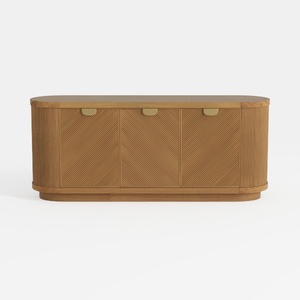
Modern Minimalist Solid Wood Fluted Sideboard with Brass Accents 3D Model
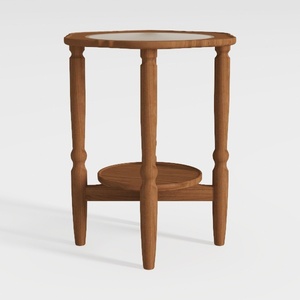

HOOBRO Small Round Side Table with Charging
If you're looking to transform your home, Homestyler is the ideal platform for you! With its user-friendly online design tool, stunning 3D renderings, a myriad of inspiring design projects, and helpful video tutorials, creating your dream space has never been easier.
Design Now for FREE
































