


If you are keen to elevate your 3D creations, mastering the importation of 3D models into Cinema 4D Lite is crucial. This guide provides you with a streamlined approach so you can concentrate more on your creative process and less on technical challenges. One tool that can complement your 3D design workflow is Homestyler, which offers intuitive design solutions.
Step 1: Prepare Your 3D Model
To start importing a 3D model, ensure it's in a supported format like OBJ or FBX. Keeping your files organized in a specific folder will simplify the importing procedure.
Step 2: Open Cinema 4D Lite
Start Cinema 4D Lite through your chosen host application, such as Adobe After Effects. Verify that you have an active project to which you can import your models.
Step 3: Import the 3D Model
Navigate to the 'File' menu located in the upper-left corner, and choose 'Merge' or 'Open.' Find your desired 3D model file and click 'Open' or 'Merge.' The model should now be displayed in your scene.
Step 4: Adjust Model Settings
Following the import, you might need to fine-tune the model's position, scale, or rotation. Utilize the attributes panel for these adjustments.
FAQ
Q: What file formats does Cinema 4D Lite support? A: Cinema 4D Lite accommodates several file formats, including OBJ, FBX, and 3DS. It's best to always verify compatibility before proceeding with the import.
Q: Is it possible to import multiple models at once? A: Absolutely, you can merge multiple models by selecting them prior to the import process.

Natural Live Edge Solid Walnut Coffee Table Top 3D Model

Minimalist Walnut Round Coffee Table 3D Model
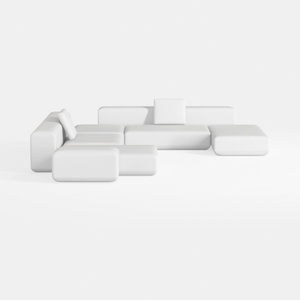

Minimalist Modern White Fabric Modular Sectional Sofa 3D Model
Homestyler is your go-to online home design platform! With its user-friendly design tool, stunning 3D renderings, and a wealth of DIY video tutorials, transforming your home ideas into reality has never been easier. Discover endless design projects and elevate your space today!
Design Now for FREE
































