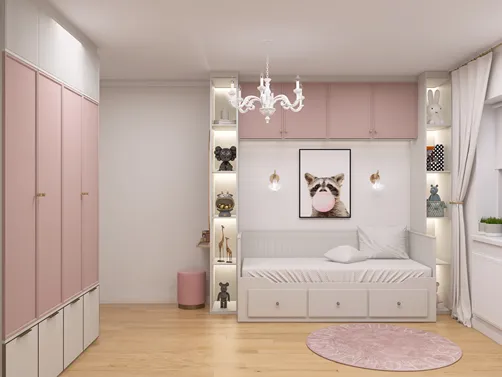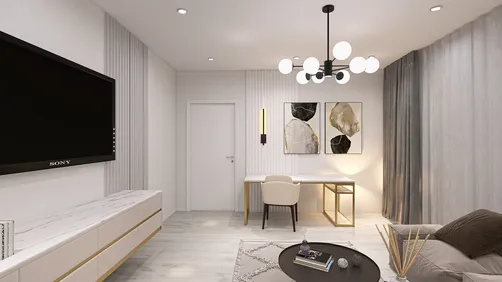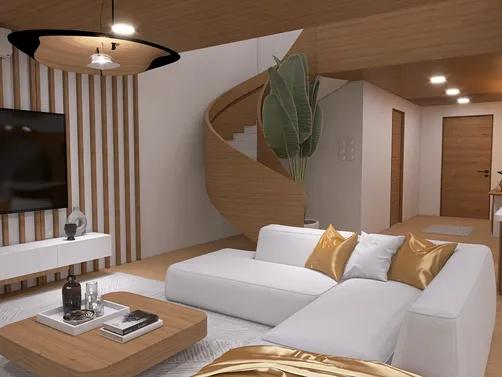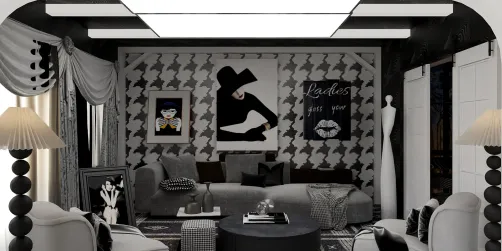
Are you excited to discover how to modify a 3D model using Blender? While this robust software might initially appear intimidating, with the correct direction, you will be able to master it in no time! Whether you're just starting or aiming to refine your abilities, let's explore the essentials of editing within Blender, and how platforms like Homestyler can complement your design process.
Familiarizing Yourself with the Blender Interface
The initial step in editing any 3D model in Blender is to get accustomed to its interface. Upon launching Blender, you'll notice a default cube displayed in the workspace—an excellent starting point for your practice. Take some time to browse through various sections such as the Toolbar, Properties Panel, and the 3D Viewport to understand their functions better.
Feeling a bit overwhelmed by the multitude of options? Begin by personalizing your workspace for improved navigation. You may want to enlarge the 3D Viewport by adjusting the panel corners, which will grant you a clearer visualization of the model as you work.
Fundamental Editing Techniques
Editing in Blender encompasses several core techniques! Here are the most commonly utilized methods:
Selection of Vertex, Edge, and Face: To modify your model, switch to Edit Mode by hitting Tab. You can select vertices, edges, or faces using the respective shortcuts 1, 2, and 3 to streamline the editing process.
Transformational Tools: Leverage the Move (G), Rotate (R), and Scale (S) tools for manipulating your selected elements. This will help you quickly and efficiently adjust the shape and arrangement of your model.
Extruding: The Extrude tool (E) is crucial for generating new geometry. For example, if you wish to append an arm to the cube, simply select a face and press E to extend it out, thus creating an addition that enhances your model's complexity.
Practicing these foundational techniques will boost your confidence and abilities. Have you experimented with extruding yet? I'd love to hear about your experiences in the comments!
Exploring Advanced Editing Features
After you’ve grasped the basics, consider delving into advanced features such as modifiers. Blender provides various modifiers, including the Subdivision Surface modifier for smoothing out your model and the Mirror modifier for symmetrical designs, both of which can greatly streamline your modeling workflow!
Another compelling feature of Blender is its sculpting capability. If you aim to incorporate intricate details into your model, transitioning to Sculpt Mode can drastically enhance your editing experience. What kinds of details have you considered adding?
Seeking Help and Resources
Keep in mind, the Blender community is extensive and supportive! Platforms like Blender Guru and Blender Nation offer a wealth of tutorials and forums where you can seek advice and learn from the experiences of others. Have you discovered any helpful resources? Share them with us!
Frequently Asked Questions
Q: How can I incorporate textures in Blender? A: You can implement textures by adding them in the Shader Editor and linking them to your materials, which enhances the depth and realism of your models.
Q: Is it possible to animate my 3D models in Blender? A: Absolutely! Blender features a comprehensive animation system, enabling you to keyframe movements and create animations that breathe life into your models.
Transform your home design dreams into reality with Homestyler! This user-friendly platform offers a fantastic online design tool, stunning 3D renderings, a wealth of design projects, and easy-to-follow video tutorials. Perfect for anyone looking to create inspiring spaces, no matter your experience level!
Desain sekarang Gratis