


Mastering the art of cutting a 3D model with MeshLab is indispensable for professionals involved in digital fabrication, 3D printing, or mesh editing. As a complimentary, open-source application, MeshLab presents an extensive array of tools for mesh manipulation, including cutting, trimming, and slicing options. Whether you're aiming to split your model, eliminate a designated section, or modify the mesh's shape, MeshLab facilitates this through its intuitive "Selection" and "Delete" capabilities. Start by importing your 3D model (navigate to File > Import Mesh), then utilize the options found in the "Selection" menu (such as “Select Faces in a Rectangular Region” or “Select Vertices”) to outline the portion you wish to retain or excise. After highlighting your selection, proceed to “Edit” > “Delete Selected Faces” to eliminate the unnecessary parts. For more accurate cuts, try applying filters like “Cut with a Plane,” where you're able to specify a plane for slicing your mesh. Upon completion, export the polished model as a new STL or OBJ file.
Tips for Effective Cutting:
As a design professional, I advise establishing a clear vision for your intended results prior to executing any cuts. It's beneficial to work with duplicated layers of your original mesh; this allows for easy reversal or refinement of the cutting process. Furthermore, if you intend to enhance the interior features or layout of your model, considering specialized software like a 3D Floor Planner or platforms such as Homestyler can provide enhanced accuracy and flexibility within your design workflow. This method not only guarantees structural integrity but also unlocks new creative possibilities when adjusting intricate models.
Frequently Asked Questions
Q: Is it possible to split a 3D model into two separate files using MeshLab?
A: Absolutely! By selecting and deleting certain portions, you can save the remaining visible section as a new file, thereby effectively splitting your model into two parts.
Q: Is MeshLab beginner-friendly?
A: Although MeshLab presents a bit of a learning curve, its foundational selection and cutting tools are quite user-friendly for those with a basic understanding of 3D software.
Q: What file types are compatible with MeshLab for import and export?
A: MeshLab supports a variety of formats including STL, OBJ, and PLY, making it compatible with most 3D design workflows.
Q: Can I reverse a cut made in MeshLab?
A: Yes, you have the option to utilize the Undo feature (Ctrl+Z or through “Edit > Undo”) if you realize a mistake prior to saving or closing your project.
Q: How accurate are the cutting tools found in MeshLab?
A: MeshLab offers both manual selection options and plane-based cutting methods, delivering precision for a range of slicing tasks from simple to moderately complex.
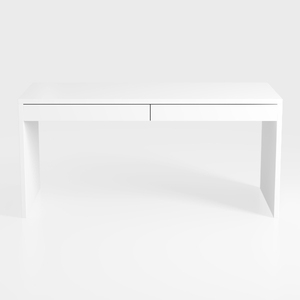
IKEA desk, White/
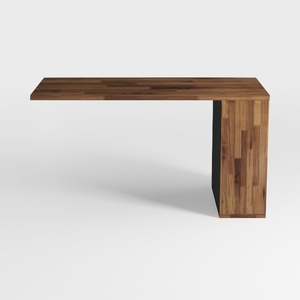
Tribesigns 63-inch Executive Desk, Vintage Home Of
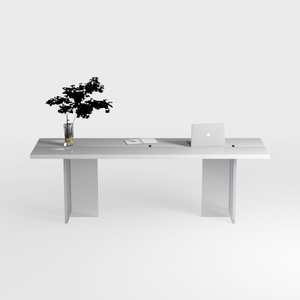
Messenya 47-Inch Office Desk with Pull-Out Outlet,
Transform your home design dreams into reality with Homestyler! This user-friendly platform offers a powerful online design tool, stunning 3D renderings, and a wealth of design projects along with DIY video tutorials. Perfect for both beginners and seasoned decorators, start designing today!
立即免费设计
































