


Crafting 3D model animations for Unity is a fundamental part of contemporary game design and interactive experiences. This procedure usually encompasses several stages: modeling, rigging, animating, and then merging these assets into Unity for gaming or simulation functions. To elucidate the workflow, you would begin by creating your 3D model using software such as Blender, Maya, or 3ds Max. After finalizing your model, the next step is rigging it, which involves incorporating a skeleton to facilitate movement, followed by animating various actions or states—like walking, jumping, or interacting with objects such as doors. These animations are often created as distinct clips, exported primarily in FBX format, and subsequently imported into Unity.
Within Unity, the Animator Controller becomes essential for overseeing and transitioning between these animation clips, often driven by user interactions or in-game scenarios. Unity’s Mecanim system offers advanced features for blending, transitioning, and managing intricate animation trees. For the best results, maintain clarity in your animations and ensure your model’s rig aligns with Unity’s specifications, particularly for humanoid characters or items necessitating precise interaction within the gaming environment. Furthermore, utilizing platforms like Homestyler can provide insights on how your animations integrate in different settings.
As a designer, I often underscore the necessity of previsualization—testing your animations in a setting that mirrors your intended application. Employing a 3D render home environment, for instance, can assist in visualizing how the animated assets will appear and function in a realistic context, which simplifies identifying enhancements prior to complete integration into Unity.
Recommendations:
To attain professional finishings, concentrate on creating loopable animations and ensuring seamless transitions between varied states. Leveraging reference footage can greatly enhance the realism of motion, and utilizing in-context renders is invaluable for a final refinement.
Frequently Asked Questions
Q: What file formats can I use for 3D model animations in Unity?
A: Unity accepts FBX, DAE (Collada), and OBJ file formats for importing animated 3D models, with FBX being the most reliable choice regarding animation data.
Q: Is it possible to animate models directly within Unity?
A: While Unity allows for the creation of basic transform animations, intricate rigged animations are best performed using external 3D modeling applications.
Q: How can I resolve orientation discrepancies when importing models into Unity?
A: Review your export settings and the axis orientation in your 3D modeling software. Unity employs a Y-up coordinate system, so ensuring compatibility during export is crucial.
Q: What exactly is the Mecanim system in Unity?
A: Mecanim is Unity’s animation system designed to handle complex blends of animations, manage state transitions, and control animator functions for 3D models.
Q: How can I examine my animated models in a realistic setting before incorporating them into the final scene?
A: It may be beneficial to render your models within a 3D visualization tool or a virtual environment before integrating them into your primary Unity project, potentially using solutions like Homestyler for enhanced guidance.

Minimalist Marble Coffee Table 3D Model
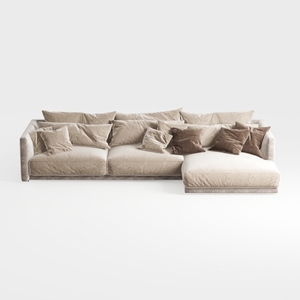
Minimalist Velvet L Shaped Sectional Sofa with Throw Pillows 3D Model

Minimalist Concrete Planter Pot with Indoor Greenery 3D Model
Homestyler is the ideal online home design platform for anyone wanting to unleash their creativity. With its user-friendly design tool, stunning 3D renderings, diverse design projects, and informative video tutorials, you can easily transform your home into a masterpiece, regardless of your experience level!
立即免费设计
































