

Constructing a 3D building model in Photoshop might initially appear intimidating, but with the right techniques, achieving remarkable designs can be straightforward. Are you ready to explore the process in detail?
Grasping the Fundamentals of 3D Modeling in Photoshop
First, it's crucial to familiarize yourself with the 3D modeling tools that Photoshop offers. The software features a specialized 3D workspace, perfect for creating and adjusting shapes. Have you had the chance to experiment with this 3D environment yet?
Begin your journey by launching Photoshop and selecting the '3D' option from the Menu bar. This functionality enables you to craft various 3D objects, including intricate buildings.
Initiating Your First 3D Building Model
1. Begin by opening a new document in Photoshop, adjusting the canvas size to your preference. A more extensive canvas provides ample space to develop your 3D model effectively.
2. Click '3D' from the menu at the top, and choose 'New 3D Extrusion from Selected Layer'. Draw a rectangle on your canvas, and as you extrude it, you'll see it transform into a three-dimensional structure!
Applying Textures and Colors to Your Model
Transforming a basic form into a lifelike building model relies on the addition of texture and color. Utilize the '3D Panel' to assign materials to the surfaces of your model. Have you considered what materials you want to incorporate? Perhaps bricks, glass, or metal might enhance your design!
To apply a material, simply select 'Materials', then double-click on the desired type. You can tailor colors and reflections to meet your vision.
Illuminating and Rendering Your Model
Effective lighting is essential for making your 3D model visually appealing. You can introduce light sources by navigating to '3D > New Light'. Adjust the lighting intensity and positioning to enhance the visibility of your building model successfully.
After finalizing your model's adjustments, you can proceed to render it. Go to '3D > Render 3D Layer'. This rendering step may take a little while, but the impressive results are certainly worthwhile!
Frequently Asked Questions
Q: What’s a good starting point for 3D modeling in Photoshop? A: Begin by getting accustomed to the 3D workspace and try creating basic shapes to gain confidence before advancing to more complicated projects.
Q: Is it possible to import 3D models from other programs into Photoshop? A: Absolutely! Photoshop supports multiple 3D file formats like OBJ and DAE, enabling you to incorporate external designs seamlessly!
Advancing Your 3D Modeling Skills
As you become more adept at crafting 3D models in Photoshop, think about delving into advanced techniques, such as designing custom textures or exploring 3D printing possibilities. Numerous online tutorials and courses can offer additional insights, assisting you in honing your design skills.
Keep abreast of the latest enhancements in Photoshop, especially since Adobe continually upgrades its 3D functionalities, allowing for the creation of captivating designs.
Final Thoughts
Developing a 3D building model in Photoshop presents a fulfilling opportunity. By mastering fundamental skills and investigating advanced methods, you can unleash your creative potential and make your architectural ideas a reality. Remember to practice regularly and feel free to experiment with various styles and materials to discover your unique design aesthetic, perhaps even utilizing tools like Homestyler to enhance your design process further.
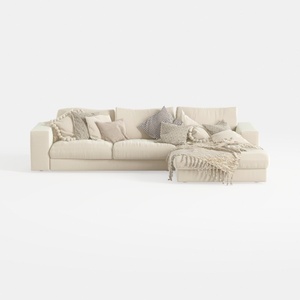
Minimalist Beige Fabric L Shaped Sectional Sofa with Throw Pillows 3D Model

Modern Olive Green Velvet Loveseat Sofa with Metal Legs 3D Model
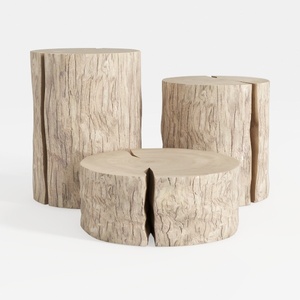

Rustic Solid Wood Stump Side Tables Set 3D Model
Explore your design dreams with Homestyler! This user-friendly platform offers a powerful online design tool, stunning 3D renderings, and a rich library of design projects. Plus, you can master DIY home decor with insightful video tutorials. Create your ideal space effortlessly today!
Zaprojektuj teraz za darmo
































