

Animating 3D models in Unity is crucial for creating immersive gaming and interactive experiences. The animation capabilities of Unity utilize the Animator component, along with powerful keyframe tools and extensive scripting functionalities to ensure your models exhibit realistic movements. In this guide, we will explore everything from asset preparation to intricate animation control techniques, empowering you to breathe life into any character or object. Plus, discover how tools like Homestyler can enhance your design process.
1. Preparing Your Model
Start by bringing your 3D model into Unity. Ensure that models made in applications such as Blender, Maya, or 3ds Max feature a properly assigned skeleton (for character models) and that components are correctly named to facilitate an efficient animation process.
2. Understanding the Animation Workflow
Unity incorporates Animation Clips, Animator Controllers, and the Animator component to orchestrate movements. Animation Clips include the actual animated information—position, rotation, scale, and any blend shapes or skeletal transformations over time.
3. Rigging and Skinning
For animating organic models like characters, ensure your 3D model possesses a high-quality rig. The effectiveness of your rigging directly impacts the realism of your model's movements. Skinning—linking the mesh to the skeleton—is usually accomplished before importing the asset into Unity.
4. Creating Animation Clips
The Animation window in Unity provides tools for creating keyframe animations on the spot or modifying imported clips. This editor enables the creation of walk cycles, idle animations, or environmental shifts. For intricate motions, animators frequently opt for external tools, exporting clips in FBX format for integration in Unity.
5. Animator Controller & State Machine
Animator Controllers offer the capability to define how animations blend and transition through the use of a state machine. For instance, you can establish states such as "Idle," "Walk," and "Run," utilizing parameters—such as speed or trigger events—to govern the transitions between them.
6. Scripting Animation Logic
For more advanced interactions, C# scripting is necessary. You might trigger various animation states based on specific game events.
Real-time adjustments can be made through layer weights, blend trees, and parameter values.
7. Tips for Animation Quality
Achieving smooth movement relies on well-timed keyframes, properly structured rigs, and seamless transitions. Utilize Unity’s timeline and preview tools to assess modifications, and always optimize your assets to ensure optimal real-time performance.
As a designer, I consistently link visual effects and movements with the overall environment layout. Animations significantly affect how users perceive space; for instance, a vibrant character within a space feels more animated if the 3D rendered home environment is well-modeled and illuminated to enhance those movements. When devising your scenes, consider how elements, lighting, and color schemes interact with animated components to create authentic and engaging surroundings, complemented by tools like Homestyler.
Tips 1:
Leverage reference animations or motion-capture data for increased realism. Keep your animation files organized through naming conventions that reflect their functions (e.g., "Walk_North," "OpenDoor"). Evaluate the overall room design and how animated models interact with objects and furniture to enhance your project’s depth and context.
FAQ
Q: Can I animate imported models from Blender in Unity?
A: Absolutely. Export your model as FBX, including the rig and animations, and then import it into Unity. Unity identifies embedded animations, allowing you to link them to the Animator Controller.
Q: How do I loop an animation clip in Unity?
A: In the Animation Import settings, select "Loop Time." Looping can also be configured in the Animation window or through the Animator Controller settings.
Q: Can I blend between two different animations?
A: Indeed. Unity's blend trees facilitate smooth transitions based on parameters, allowing seamless blending of animations like walk and run according to user input.
Q: What distinguishes Animation Clips from Animator Controllers?
A: Animation Clips contain the actual animated data, while Animator Controllers manage the playback timing and conditions of these clips using a state machine.
Q: How can I optimize my animated models for better performance?
A: Minimize the number of bones, limit keyframes judiciously, employ GPU skinning, and compress animation data during the export process. Test your model on actual hardware using Unity’s Profiler to ensure optimal performance.
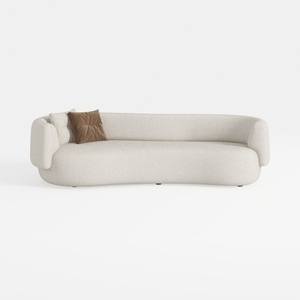
Minimalist Boucle Curved Living Room Sofa 3D Model
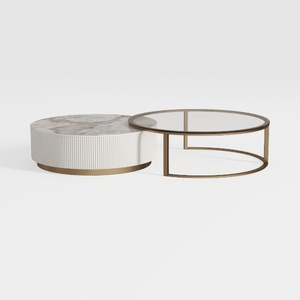

coffee table
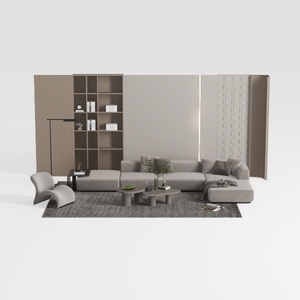
Minimalist Modern Fabric Sectional Sofa Living Room Set 3D Model
Homestyler is your go-to online home design platform, offering an easy-to-use design tool and stunning 3D renderings to turn your ideas into reality. With a wealth of design projects and helpful video tutorials, it's perfect for both beginners and seasoned decorators alike. Start creating your dream space today!
Zaprojektuj teraz za darmo
































