


The auto-save functionality in AutoCAD is an essential tool for designers and drafters, as it ensures your creations are safe from unexpected system crashes or power outages. Typically, AutoCAD auto-saves your work at set intervals, generating temporary backup files with a .sv$ extension in a designated folder. These backup files are invaluable for recovering your recent efforts if the main file becomes corrupted or lost. To customize the auto-save frequency and file storage location, simply access the Options dialog by entering OP or OPTIONS in the command line, and navigate to the 'Open and Save' tab. Here, users can decide the frequency of auto-saves and specify where those files will be saved. After an unforeseen interruption, it’s possible to restore the latest updates by renaming the .sv$ file to .dwg and then opening it in AutoCAD.
Tip 1:
As a designer, I always advocate for establishing a workflow that leverages AutoCAD's auto-save feature while also integrating regular versioning, particularly for intricate interior designs or floor layouts. For a more cohesive and visual approach to project management—featuring capabilities like auto-save, cloud-based backups, and quick concept visualization—consider exploring digital tools tailored for 3D floor planning such as Homestyler. These tools can significantly enhance your creative process while ensuring your work is more intuitively protected.
FAQ
Q: How do I enable or modify auto-save settings in AutoCAD?
A: To adjust the auto-save settings, type OP or OPTIONS in the AutoCAD command line, then go to the 'Open and Save' tab to change the intervals and backup file locations.
Q: Where are my auto-save files typically located?
A: By default, .sv$ auto-save files are stored in a temporary folder; you can verify or modify this location in your Options menu under 'Files.'
Q: How can I recover work from an auto-save file?
A: To recover your latest work, locate the .sv$ file, rename it to have a .dwg extension, and then open it in AutoCAD.
Q: Is it possible to disable auto-save in AutoCAD?
A: Yes, you can disable the auto-save feature by setting the interval to 0 minutes, though this is not advised for most users.
Q: Does auto-save eliminate the need for manual saving?
A: No, while auto-save serves as a backup, it is crucial to manually save your progress and utilize 'Save As' for effective project versioning.

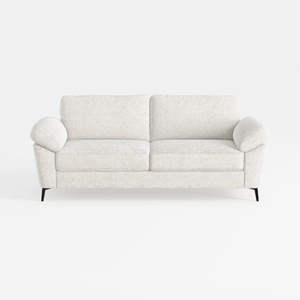
Minimalist Fabric Loveseat Sofa with Black Metal Legs 3D Model

Modern Marble Top Solid Wood Console Table With Decorative Accents 3D Model
Homestyler is your go-to online home design platform! With its user-friendly design tool, stunning 3D renderings, and extensive library of DIY video tutorials, you can effortlessly transform your space and unleash your creativity. No design experience needed—start creating today!
立即免费设计
































