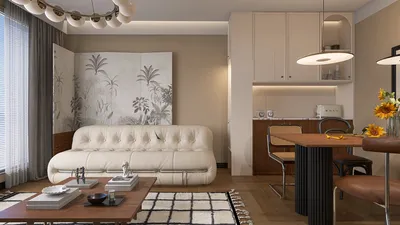


Transforming your home interior designs into breathtaking visual presentations is possible with the help of Homestyler. Whether you're a seasoned interior designer or an enthusiastic DIYer, mastering the rendering techniques is crucial for effectively showcasing your design ideas. In this article, we will guide you through the essential steps to create stunning interior renders that captivate your clients and enhance your portfolio.
Step 1: Preparing Your Scene
Before diving into the rendering process, it's essential to prepare your scene meticulously. Begin by importing your 3D model into Homestyler. Check that all components, including walls, furniture, and decorative elements, are correctly positioned. Adjust the scale and layout of your model as necessary to establish a harmonious composition.
Step 2: Adding Materials
Homestyler provides a diverse range of materials to choose from. Opt for materials that emulate the real-world textures and finishes you envision for your interior space. You can personalize materials by modifying their properties, such as color, gloss level, and transparency, to achieve the aesthetic you desire.
Step 3: Illumination of Your Scene
Lighting plays a pivotal role in rendering lifelike interiors. Utilize a blend of HDRI lighting offered by Homestyler along with additional light sources to create depth and atmosphere. Play with various lighting angles and intensities to accentuate key features of your design. Natural light can significantly elevate the mood of your render, so think about strategically placing windows.
Step 4: Camera Positioning
Position your camera to capture the most compelling angles of your interior design. Homestyler allows you to modify focal lengths, depth of field, and framing to create an engaging view. Take the time to try out different perspectives and select the one that presents your design most effectively.
Step 5: Adjusting Rendering Settings
After establishing your scene, it’s time to tweak the rendering settings. Select the resolution and quality options based on your requirements. For professional presentations, opting for higher resolutions and quality settings is advantageous. Keep in mind that intricate scenes might require extended render times.
Step 6: Image Enhancement
Once your rendering is complete, consider enhancing your images through post-processing. Utilize image editing software to modify brightness, contrast, and color balance. Incorporating subtle effects, such as shadows or reflections, can further augment the realism of your render.
Step 7: Saving and Sharing Your Creations
When you're pleased with your render, save it in your preferred format. Homestyler allows for image exports in multiple resolutions and file types. Display your remarkable interior renders on your website, social media, or share them with clients to highlight your design talents.
Success Tips
FAQ
Q: What file formats can I import into Homestyler for 3D models? A: Homestyler supports various file formats, including .OBJ, .FBX, .SKP, and more.
Q: How can I speed up rendering in Homestyler? A: To enhance rendering speed, consider reducing resolution or quality settings and ensure your hardware meets the recommended specifications for running Homestyler.
Q: Can I create animations using Homestyler? A: Absolutely! Homestyler possesses robust features for developing animations, enabling you to bring your designs to life.
Welcome to the leading home design software.
Дизайн сейчас бесплатно
































