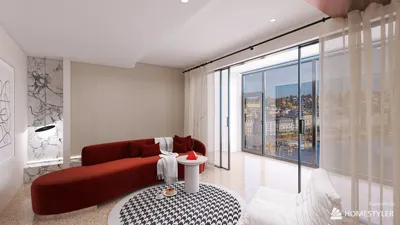


Incorporating a 3D model into your video can significantly enhance your content and captivate your audience in unprecedented ways. Whether you're a professional video editor or a beginner, this comprehensive guide will help you navigate the necessary steps to seamlessly integrate 3D models into your video projects using platforms like Homestyler.
Grasping the Fundamentals of 3D Models
Before delving into the technical details, it’s essential to comprehend what a 3D model entails. In essence, a 3D model is a digital representation of a three-dimensional object. These models can be crafted with various software tools, including Blender, Autodesk Maya, and 3ds Max. Additionally, many online repositories offer a selection of pre-designed 3D models available for download.
To begin, you'll require a 3D model file, commonly in formats such as OBJ, FBX, or STL. Verify that your video editing software is compatible with these formats. Renowned applications like Adobe After Effects, Premiere Pro, and Final Cut Pro are capable of processing 3D models, although they may demand specific plugins or additional setup.
Preparing Your 3D Model for Integration into Video
After acquiring your 3D model, the subsequent step involves getting it ready for inclusion in your video. Follow these instructions:
Launch your 3D modeling software and inspect the textures or materials for any necessary adjustments.
Optimize your model to ensure smooth playback during video editing, avoiding any potential lag or rendering complications.
Export the model in a suitable format for your video editing software.
Integrating the 3D Model into Your Video
Now, the exciting part begins! Adhere to these steps to incorporate your 3D model into the video:
Open your video editing application and import your 3D model file from a platform like Homestyler.
Position the model onto your timeline, placing it where you want it to appear in the final edit.
Adjust the model’s scale, rotation, and positioning to ensure it fits naturally within the scene.
Utilize keyframes to animate the model if needed, adding movement that enhances the visual appeal of your video.
Finalizing Your Video
Once you have inserted and configured your 3D model, you may want to add further effects such as shadows or lighting to facilitate a more cohesive appearance in the video. Don't hesitate to explore the settings, adjusting until you achieve the look you envision.
When you’re pleased with your final adjustments, proceed to render the video and witness how your 3D model animates within the project!
FAQs
Q: Which software is suitable for embedding a 3D model into a video? A: You can utilize applications such as Adobe After Effects, Premiere Pro, or Final Cut Pro, all of which support the integration of 3D models with proper settings.
Q: Is a powerful computer necessary for working with 3D models? A: Indeed, working with 3D models can be resource-intensive, so having a robust graphics card and adequate RAM will enhance your experience.


Minimalist Solid Wood Round Dining Table Set with Fabric Armchairs 3D Model

Minimalist Solid Oak Dining Table 3D Model
Homestyler is your go-to platform for easy home design. Featuring an intuitive online design tool, stunning 3D renderings, and a wealth of video tutorials, you can effortlessly create and visualize your dream spaces. Transform your home design process today!
Diseño ahora GRATIS
































