


If you're looking to integrate a 3D model into the Oculus Rift seamlessly, a few crucial steps need to be taken to ensure the process goes smoothly. This guide will walk you through the necessary actions to import your 3D models effectively, ultimately enhancing your virtual reality experience with tools like Homestyler.
Begin by confirming that your 3D model is saved in the correct file format. The Oculus Rift is compatible with various formats, including .FBX and .OBJ. If your model is stored in a different format, consider converting it using a trusted 3D modeling software such as Blender or Autodesk Maya. Properly formatting your model is essential for achieving optimal rendering and functionality.
Importing a 3D Model into Oculus Rift: Steps to Follow
1. **Model Preparation**: Your 3D model must be optimized for virtual reality usage. This entails lowering the polygon count, correctly applying textures, and removing any unnecessary components. Using a tool like Blender can be extremely beneficial for these adjustments, as they significantly enhance performance and visual clarity in the VR setting.
2. **Model Export**: Once your model is properly prepared, the next step is to export it in a compatible format. Access the export feature in your modeling software, select the appropriate file type (either FBX or OBJ), and save it in an easily accessible location. Be sure to verify the export settings to ensure everything is correctly configured.
3. **Import into a VR Development Platform**: You will require a VR development environment such as Unity or Unreal Engine. Load your VR project and drag your 3D model into the project assets folder. This process enables you to begin working with your model in a fully interactive space, making the most of Homestyler's capabilities for enhancing your designs.
4. **Oculus Rift Environment Setup**: Make sure your project is configured with the Oculus Rift settings. Adjust the VR camera settings to guarantee that the model presents correctly when viewed through the headset. Properly scaling and positioning your model is imperative for creating an engaging experience for users.
5. **Model Testing**: After the import, it's critical to test your model within the VR environment. Look for any visibility, collision, or interactivity issues. Conducting thorough testing is key to ensuring a smooth user experience, allowing you to address any problems before finalizing your content.
6. **Refine as Needed**: If adjustments are required, return to your modeling software, refine your model, re-export it, and update the assets in your VR project. Continuous refinement is vital to ensure your 3D model adheres to all VR standards and provides an engaging user experience.
Best Practices Tips:
- Regularly backup your models and projects to prevent data loss.
- Keep your project folder organized and clean within your development environment.
- Stay informed about the latest VR development best practices for optimal performance.
Frequently Asked Questions
The Oculus Rift supports standard file formats, primarily .FBX and .OBJ. These formats are widely recognized in 3D modeling and enable effective integration with Oculus.
To optimize your model, lower the polygon count, apply suitable textures, and remove any unneeded details. This will help maximize the model's performance and enhance rendering speed in the VR setting.
If your model does not display correctly, revisit the scale and positioning within your VR development platform to ensure all settings align with the specifications for Oculus Rift.
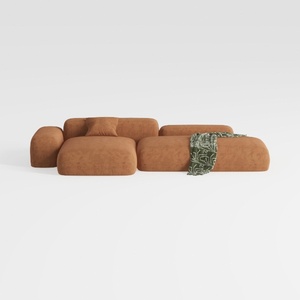
Minimalist Brown Fabric Modular Sectional Sofa 3D Model
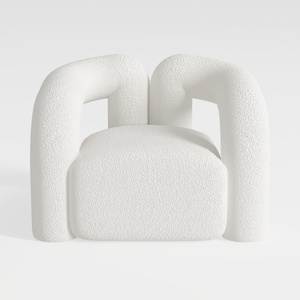
Minimalist Boucle Fabric Armchair Modern Unique Design 3D Model
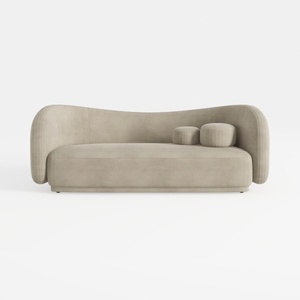
Minimalist Velvet Curved Living Room Sofa 3D Model
Discover the ease of home design with Homestyler! This online platform offers a user-friendly design tool, stunning 3D rendering options, and a wealth of design projects and DIY video tutorials. It's the perfect way to bring your home vision to life, no experience needed!
Zaprojektuj teraz za darmo
































