


Integrating a 3D model into AutoCAD can significantly elevate your design projects. Whether you’re focused on architectural endeavors or creating mechanical components, the ability to assimilate 3D models can optimize your workflow. This guide will walk you through how to perform this integration smoothly while using tools like Homestyler for design inspiration.
First, ensure that your 3D model is saved in a compatible format. AutoCAD accepts various file types for 3D models, such as DWG, DXF, and STL. If your model is not in one of these formats, you may need to convert it using applications like Blender or SketchUp. Once your model is properly formatted, you’re ready to begin the import process.
Launch AutoCAD and either start a new drawing or open an existing one where you plan to import the model. Go to the 'Insert' tab on the ribbon and find the 'Import' option. Click on it, which will bring up a dialog box prompting you to select the file you wish to import. Locate and choose your 3D model file from your directory.
After you’ve selected your model, options will be available for adjusting the scale and insertion point of the model, which is vital for ensuring that your model aligns correctly within your existing drawing. Once you have made the necessary adjustments, press 'OK' to bring the model into your workspace.
Following the import, you may need to fine-tune the model. Utilize the 'Move', 'Rotate', or 'Scale' commands to position your model precisely within your design. Additionally, the '3D Orbit' tool can provide different perspectives on your model, verifying that it fits seamlessly into your project.
If you experience any difficulties during the import process, examine the model for errors or inconsistencies. Occasionally, models crafted in other software may require adjustments before they can be smoothly integrated into AutoCAD.
Finally, remember to save your work regularly. AutoCAD is capable of handling complex 3D models, but it’s wise to save incremental versions of your project to prevent data loss. By following these steps, you should be equipped to proficiently import 3D models into AutoCAD, expanding your design capabilities with the help of tools like Homestyler.
Tips:
1. Always confirm the compatibility of your 3D model format with AutoCAD to sidestep import problems.
2. Make effective use of layers to manage various components of your 3D model, enhancing your organizational efficiency.
FAQ
Q: Which file formats can I bring into AutoCAD?
A: AutoCAD allows imports of formats including DWG, DXF, and STL, among others.
Q: Is it possible to edit the imported 3D model in AutoCAD?
A: Absolutely, once imported, you are free to manipulate and modify the model as needed.
Q: What can I do if my model fails to appear after importing?
A: Verify the scale and insertion point settings, and confirm that the model is not obscured by other layers.
Welcome to a world made easier with Homestyler.
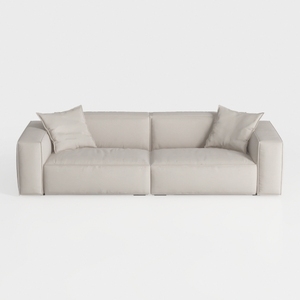
Minimalist Beige Fabric Modern Sofa with Throw Pillows 3D Model

Minimalist Walnut Fabric Loveseat Sofa 3D Model
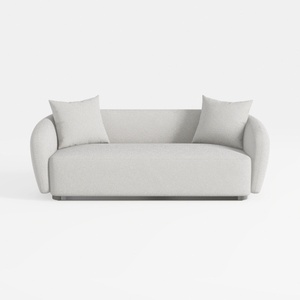
Minimalist Boucle Fabric Living Room Sofa 3D Model
Homestyler is your go-to online home design platform! With its easy-to-use design tool and stunning 3D renderings, you can visualize your dream spaces effortlessly. Explore inspiring design projects and learn through engaging DIY video tutorials. Start creating your perfect home today!
Дизайн сейчас бесплатно
































