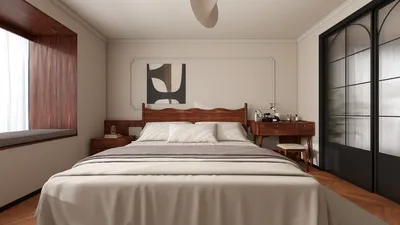


An accurate and precise floor plan serves as the essential basis for any successful interior design project. Whether you're a seasoned designer or a beginner using a free online room planner, being able to upload your existing floor plan can significantly reduce the time needed for layout work, allowing you to dive straight into 3D space planning with ease, especially using tools like Homestyler.
This comprehensive guide will take you through the entire process—from file preparation to transforming it into a 3D layout.
1. Prepare Your Floor Plan File
Before you upload, ensure that your floor plan meets the following criteria:
✅ It must be digitized (if it's hand-drawn, ensure it is clearly scanned or photographed)
✅ The file should be saved in JPG, PNG, or PDF format
✅ High resolution with clearly visible measurements and boundaries is crucial
If scanning a paper plan, aim for a resolution of 300 dpi to maintain sharpness in linework.
2. Upload the Floor Plan
In most design applications like Homestyler, the upload button can be found within the main workspace.
For an interactive room planner, follow these simplified steps:
⚠️ Pay special attention to the scaling step—accurate room dimensions, furniture placements, and walkways rely on it.
3. Trace and Convert into a 3D Layout
Once you've uploaded, utilize the tracing tools to outline your plan:
After tracing, the software will automatically transform the plan into a 3D layout. You can now create a room design in both 2D and 3D without needing to redraw everything from scratch.
At this point, you can begin arranging furniture from a built-in library featuring thousands of 3D models.
4. Enhance the Layout With Materials, Lighting & Furniture
Within the editor, you are able to:
✔ Experiment with various furniture arrangements
✔ Choose finishes such as flooring, tiles, wall colors, and materials
✔ Adjust natural and artificial lighting
✔ Create alternate versions of the same room design
Pro tip: Always start by placing the largest piece of furniture first—this will influence traffic flow and sightlines throughout the space.
5. Preview, Render & Export
Once your design is finalized, you can:
This workflow enables you to verify proportions, layout consistency, and design aesthetics before making any purchases.
Tips for Smooth Floor Plan Uploads
FAQ
Q: Which file formats are supported for uploads?
A: JPG, PNG, and PDF formats are commonly accepted.
Q: Is it possible to edit the plan after I upload it?
A: Absolutely—you can make adjustments to walls, doors, and scaling after uploading.
Q: What if my plan is hand-drawn?
A: Simply scan or photograph it clearly, then upload and outline it digitally.
🔗 Recommended Next Read
Are you interested in uploading a PDF floor plan and seamlessly converting it into a 3D model?
➡️ Discover how to transform PDF floor plans into 3D for free
https://www. Homestyler.com/article/how-to-turn-pdf-floor-plans-into-3d-for-free
Homestyler is your go-to online home design platform, perfect for both novices and pros. With its user-friendly design tool, stunning 3D renderings, diverse design projects, and helpful DIY video tutorials, you can effortlessly transform your vision into reality. Start your design journey today!
Design Now for FREE
































