

Extracting 3D models from Minecraft has become a favored method among creators, educators, and designers to adapt the game's distinctive blocky architecture into various digital applications such as 3D printing, rendering, and visual educational tools. If you're interested in diving into this process, here's a simple guide to help you convert Minecraft worlds into functional 3D models.
A Comprehensive Guide to Exporting Minecraft 3D Models
1. Set Up Your Minecraft World: Open the specific world you wish to export and verify that all structures or landscapes are correctly positioned. It's advisable to take note of your coordinates for the section you want to export.
2. Download Chunky or Mineways: These are both free applications designed to transform Minecraft regions into 3D files.
• Chunky: Excellent for rendering small-scale models and exporting.
• Mineways: Ideal for producing .OBJ or .STL files suitable for 3D printing.
3. Export the Area: Utilize Mineways to define the area you want to export and select which blocks to include or skip. Choose .OBJ for 3D modeling or .STL for 3D printing formats.
4. Enhance Your 3D Model: Import your exported file into a 3D editing software like Blender, SketchUp, or Unity. In this stage, you can refine the geometry, add textures, or modify block characteristics.
5. Utilize or Share Your Creation: After refinement, your model will be ready for various applications including rendering, educational purposes, or even 3D printing.
As a designer, I frequently face the task of converting imaginative digital worlds into both physical and photorealistic models. After exporting your Minecraft 3D model, using a tool like Homestyler allows for seamless visualization within real interior spaces, enhancing your creations to be not only functional but also visually captivating.
Best Practices:
Ensure that you verify the size of the exported region; if it's too large, it might overwhelm your computer! Keeping the geometry clean will save you significant time later, particularly if you intend to render or print your designs.
Frequently Asked Questions
Q: What versions of Minecraft are optimal for model exporting?
A: Java Edition is the most frequently supported by both Mineways and Chunky due to its file accessibility.
Q: Can I export whole worlds or just sections?
A: While entire worlds can be exported, larger areas may lead to cumbersome files and extended processing times.
Q: Which file formats do these applications accept?
A: Typically, OBJ and STL are common formats used for 3D modeling and printing; some programs may support PLY for color data as well.
Q: Is sharing exported Minecraft models permissible?
A: Yes, for personal use or in non-commercial educational contexts. For paid projects or broader distribution, refer to Mojang’s content guidelines.
Q: How do I enhance the realism of Minecraft models?
A: Import your model into a reliable rendering software with quality lighting and texture libraries—good geometry and high-resolution textures significantly enhance the final appearance.
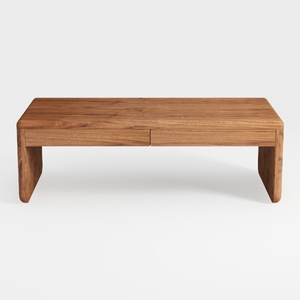
Minimalist Solid Wood Two Drawer Coffee Table 3D Model
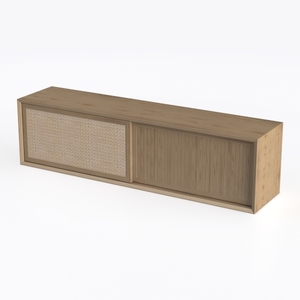
Minimalist Oak Rattan TV Cabinet 3D Model
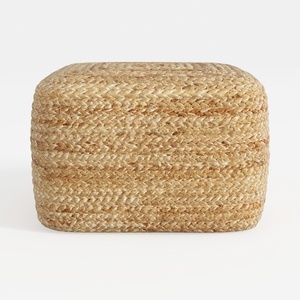
Natural Rattan Woven Square Ottoman 3D Model
Looking to transform your home? Homestyler is your go-to online design platform! With its user-friendly design tool, stunning 3D renderings, a wealth of design projects, and helpful video tutorials, you can easily create your dream space—no prior experience needed!
Design Now for FREE
































