


Transferring Unity 3D models to Blender might seem intimidating at first, but it can be a straightforward process. This comprehensive guide will help you import your Unity assets effectively, ensuring that all quality and details are preserved during the transition.
To begin, it’s important to know the file formats that Unity utilizes for its models. Primarily, Unity imports FBX or OBJ files, so you should first confirm that your model is saved in one of these formats. Acquainting yourself with the export process within Unity is essential for a smoother experience.
Step 1: Export Your Model from Unity
Launch your Unity project that contains the desired model. In the Project window, select the 3D model you want to export. Navigate to the menu bar and select Assets > Export Package. Make sure to tick the box next to your chosen model, then click Export.
Now you will have a Unity package file. To access the model files, you must extract this package. Locate the file on your computer, right-click, and choose Extract to unpack its contents.
Step 2: Importing into Blender
After extracting the model, open Blender. Click on File > Import and select the corresponding file format of your extracted model, usually FBX or OBJ. Browse to find your extracted files, select the model, and click Import.
Your model should now be visible in Blender. Ensure that all materials and textures have transferred correctly, as they may occasionally not carry over seamlessly. You might need to manually relink any textures that seem missing.
Tips for a Smooth Import
1. Make sure your model is not overly complex when exporting from Unity; a high polygon count can lead to issues in Blender.
2. Utilize Blender's features to clean up your model by removing any extraneous vertices or faces that might have been included during the export.
3. If you encounter scaling problems, verify the scale settings in both Unity and Blender prior to the export and import processes.
FAQ
Q: Can Blender be used for further editing of the imported model? A: Definitely! Blender is equipped with a wide variety of tools for model editing, including sculpting and texture painting.
Q: Is there a method to automate the import/export routine? A: Yes! Various scripts and plugins are available to simplify the workflow between Unity and Blender.
Conclusion
By adhering to these outlined steps and guidelines, you can adeptly import your Unity 3D models into Blender with ease. The most critical aspect is to prepare your models thoroughly while being mindful of possible challenges. With ongoing practice, this workflow can become second nature, significantly enhancing your design capabilities. Additionally, as you develop your modeling skills, consider utilizing tools like Homestyler for streamlined design processes and visualization.
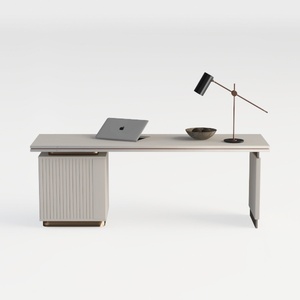
Modern Minimalist Solid Wood Office Desk With Gold Accents 3D Model

Minimalist Solid Wood Fabric Dining Armchair 3D Model
Discover your dream home with Homestyler! This user-friendly online design platform offers intuitive tools, stunning 3D renderings, and a wealth of design projects. Plus, with engaging video tutorials, transforming your space has never been easier or more fun. Unleash your creativity today!
Projete agora para LIVRE
































