
Transferring 3D models from your computer to an iPad can appear overwhelming initially, but with the appropriate techniques, it becomes a straightforward task. Whether you're engaged in a design venture or simply wish to present your creative projects, I’m here to assist you with the process.
To begin, make sure that the 3D models you want to transfer are in a format that the iPad can read—commonly accepted formats are OBJ, STL, and FBX. After verifying the format, the next step is to select a method to move your files. Here’s a rundown of some effective approaches:
1. Utilizing Cloud Storage Services
One of the simplest methods to transfer files is through cloud storage platforms like Google Drive, Dropbox, or iCloud. You can upload your 3D model files from your PC to your preferred cloud service, then access it from your iPad to download the files effortlessly. This method works well if you leverage tools like Homestyler, which support cloud functionality for design projects.
2. Through a USB Connection
For a more direct method, consider connecting your iPad to your PC via a USB cable. You can utilize iTunes or Finder (for macOS Catalina and later) to move files. Simply navigate to the ‘File Sharing’ section, select the appropriate app that accommodates your 3D models on the iPad, and drag your files into that application.
3. Employing File Transfer Applications
There are numerous apps available for both iOS and PCs that simplify the process of transferring files over Wi-Fi. Applications such as Documents by Readdle and FileBrowser facilitate wireless transfers of 3D models. Download the same application on both devices and follow their guidelines to share your files seamlessly over your Wi-Fi connection.
Frequently Asked Questions
Q: Which file formats work best for 3D models on the iPad? A: The ideal file formats generally include OBJ, STL, and FBX, as these are broadly supported by various 3D modeling applications available on the iPad, including those that integrate with Homestyler.
Q: Is it possible to use AirDrop for transferring files to my iPad? A: Absolutely! If you own a Mac, AirDrop is a quick method to wirelessly send your 3D models to your iPad. Just ensure both devices are connected to the same Wi-Fi and have Bluetooth turned on.
Q: Are all 3D modeling apps on the iPad compatible with external files? A: Not every app supports all file formats, so it's essential to verify the specific app’s compatibility with different 3D model formats before proceeding with the transfer.
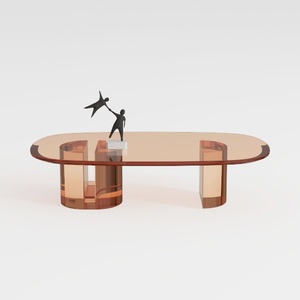

Modern Amber Glass Oval Coffee Table 3D Model
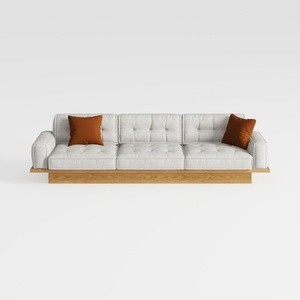
Modern Solid Wood Frame Tufted Fabric Three Seat Sofa 3D Model
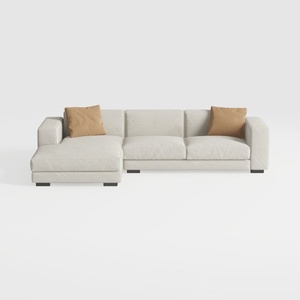
Minimalist Fabric L Shape Sectional Sofa with Throw Pillows 3D Model
Experience the power of home design with Homestyler! This user-friendly platform offers an innovative online design tool, stunning 3D renderings, and a wealth of inspirational design projects. Plus, you can enhance your skills with engaging DIY video tutorials. Bring your dream home to life effortlessly!
Progetta ora GRATIS