

Transferring a 3D model into Blender is crucial for designers or 3D artists aiming to manipulate and animate their digital creations. If you're uncertain about how to start this process, you've landed in the right spot! Let’s explore a detailed guide on how to smoothly transfer a 3D model into Blender using strategies that can be enhanced with tools like Homestyler.
Getting to Know File Formats:
The first step in transferring a 3D model into Blender involves understanding the various file formats supported by the software. Popular formats include OBJ, FBX, and STL. Each of these formats comes with its unique aspects, making it essential to select one that aligns well with your requirements. Ever considered the distinctions among these formats? For instance, OBJ is ideal for basic meshes, whereas FBX provides stronger support for animations and textures.
Exporting Your 3D Model:
Before you can proceed with importing your 3D model into Blender, it must be exported from the software in which it was originally designed. It’s vital to review your model's settings related to scale, orientation, and texture mapping. Think about how you envision your model in Blender—does it require any modifications prior to exporting? Correctly configuring these parameters can prevent complications later on.
Bringing the Model into Blender:
After exporting your model, launch Blender and go to the 'File' menu to select the 'Import' option. Choose the appropriate import method based on your file type (for example, select 'OBJ' for an OBJ file). Your model will then be displayed in the Blender workspace. It's often useful to utilize the 'View' settings to adjust your perspective and allow for a better examination of the model. Are there any immediate concerns? Errors in scaling or rotation may occur post-import, so it’s advisable to inspect the model's properties closely.
Adding Final Touches:
With your model successfully imported into Blender, the exciting phase of refining and texturing is underway! Depending on what your project entails, you might want to integrate materials and lighting for enhanced visual quality. Play around with Blender's shading tools to give your model an impressive finish. What effects are you aiming to create? For example, establishing a basic UV map can greatly enhance the way textures are applied to your 3D model, making tools like Homestyler a great addition for visualization.
Frequently Asked Questions
A: The common file formats encompass OBJ, FBX, and STL, with OBJ being suitable for mesh designs and FBX excelling in handling animations.
A: In Blender's Object properties, you can modify the scale settings to align with the dimensions of your original model.
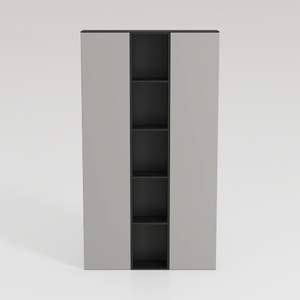
Minimalist Two Tone Open Shelf Storage Cabinet 3D Model

Minimalist Modern Matte Navy Blue Side Table 3D Model
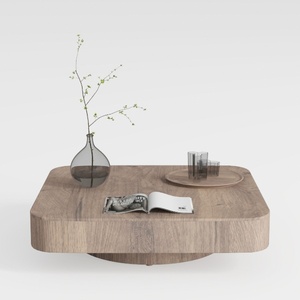
Minimalist Solid Oak Square Floating Coffee Table 3D Model
Homestyler is your go-to online home design platform! With its user-friendly design tool, stunning 3D renderings, and a wealth of informative video tutorials, you can effortlessly create and visualize your dream spaces. Transform your ideas into reality, no matter your experience level!
Design Now for FREE
































