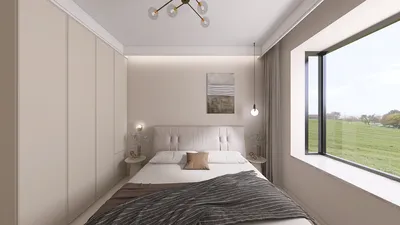


Printing floor plans with Homestyler can be an uncomplicated procedure when you adhere to the proper guidelines. Whether you're preparing for a client consultation or eager to present your design concepts, mastering the printing process is crucial. This article will walk you through the complete printing procedure and share some helpful tips for enhancing your floor plans.
Step-by-Step Instructions for Printing Floor Plans
To print your floor plan using Homestyler, first, launch your finished project in the application. Confirm that everything appears correct before proceeding to print. Next, navigate to the 'File' menu and select 'Print' or utilize the shortcut Ctrl+P to open the print dialog.
Adjusting Your Print Preferences
In the print dialog, you will encounter several settings to enhance your printouts. Choose your desired printer and modify settings such as orientation (portrait or landscape) and paper dimensions. Make sure to select a scale that accurately reflects your design; a 1:100 scale is frequently a suitable starting point.
Previewing Your Printout
Before you finalize the print, take a moment to preview your floor plan. This step ensures that all components are appropriately placed and visible. If you identify any discrepancies, you can adjust the layout in Homestyler accordingly before printing.
Exporting as a PDF
If you choose to share your floor plan electronically, consider exporting it as a PDF. This method is especially advantageous for emailing or uploading to design forums. In the 'File' menu, click on 'Export,' then select 'PDF.' Modify the settings if necessary and save the file in your preferred location.
Conclusion
Printing a floor plan with Homestyler is not a complex task. By following these outlined steps, you can produce high-quality prints that effectively showcase your creative efforts. Always remember to verify your settings and preview your designs for the best outcome.
FAQ
What should I do if my floor plan doesn't fit on a single page?You might want to adjust the scale or select a larger paper size to fit the complete plan. Additionally, consider printing in sections that can be assembled together.
Is it possible to print in color?Absolutely! Just ensure that your printer is configured to color mode in the print dialog for vibrant print results.
How can I effectively share my floor plan with clients?Exporting your plan as a PDF is an excellent way to share, as it preserves the layout and design integrity.
welcome to Use No.1 Floor Planner
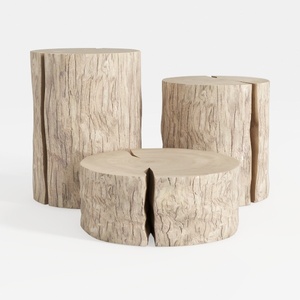

Rustic Solid Wood Stump Side Tables Set 3D Model

IKEA desk, White/
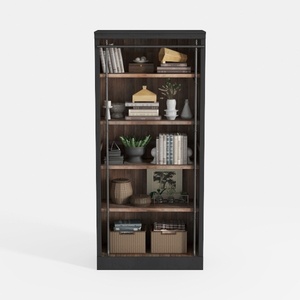
Industrial Solid Wood Metal Bookshelf Storage Display 3D Model
Homestyler is your go-to online platform for all things home design! With its intuitive online design tool, stunning 3D rendering options, and a wealth of DIY video tutorials, you can effortlessly transform your home project ideas into reality—no prior experience needed!
Zaprojektuj teraz za darmo
































