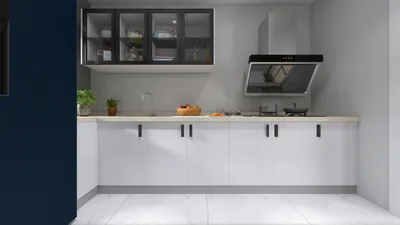


Opening 3D models using Photoshop CS6 is a relatively simple process, provided you follow the right steps. Thanks to its robust 3D functionality, Photoshop CS6 lets you create, modify, and render stunning 3D designs. Here’s a concise guide on how to seamlessly integrate 3D models into Photoshop CS6.
Understanding 3D Model Formats:
Before you start, it’s important to be familiar with the most common 3D model file formats that Photoshop CS6 supports, including OBJ, DAE, 3DS, and STL. Knowing these formats can significantly streamline your workflow and minimize potential hassles when loading your files.
Step-by-Step Guide to Open 3D Models:
1. **Launch Photoshop CS6**: First, open your Adobe Photoshop CS6 application. Ensuring that your software is up to date can help avoid unexpected problems.
2. **Navigate to the 3D Workspace**: From the top menu, select 'Window' and verify that '3D' is enabled. This step will display the 3D panel, which is vital for working with 3D models.
3. **Open a 3D File**: Click on 'File' in the menu bar, then hover over 'Open' and choose your desired 3D file format. Navigate to where your model is saved, select it, and click 'Open'.
4. **Adjust the 3D Model**: Once your model is loaded, utilize the available 3D tools to manipulate it as desired, which can include tasks such as rotating, scaling, or applying materials to improve its look.
Troubleshooting Tips:
If you run into issues, consider the following solutions: make sure your 3D model file hasn't been corrupted, verify its compatibility with Photoshop CS6, or update your software if needed. Also, keeping your graphics driver current ensures optimal performance when using the 3D features in Photoshop.
FAQ
Q: Are non-standard formats usable within Photoshop CS6 for 3D models? A: Photoshop CS6 predominantly supports standard formats like OBJ and STL. Non-standard formats may not work correctly when you try to open them.
Q: What should I do if my 3D model isn't displaying correctly? A: Ensure that the 3D layer is selected and visible in your layer panel. If the problem persists, try re-importing the model for better results.
Homestyler is your go-to online home design platform, ideal for anyone looking to transform their space. With its user-friendly design tool, stunning 3D renderings, diverse design projects, and helpful DIY video tutorials, creating your dream home has never been easier!
Design Now for FREE
































