


Importing 3D models into After Effects can significantly enhance the visual appeal of your projects, but how can you effectively achieve this? This guide will take you through the entire process, step by step, so you can create captivating animations with your 3D models. Our aim is to provide valuable insights tailored to meet the creative demands of both designers and animators.
Understanding 3D Layers in After Effects
The first aspect to understand is how After Effects interacts with 3D layers. In contrast to 2D layers, 3D layers provide the ability to manipulate objects in a three-dimensional environment. To make the most of your 3D models, it’s crucial to learn how to transform your layers into 3D. This requires activating the 3D Layer switch for your chosen layer, allowing you to position, rotate, and scale the model on the z-axis, thus crafting immersive visuals that stand out.
Steps to Import 3D Models into After Effects
To begin importing a 3D model, ensure you’re working with the correct file formats that After Effects supports. The recommended formats include .obj and .fbx. Here’s a simple walkthrough:
First, prepare your 3D model for import. This involves tidying up any unnecessary files, verifying texture mapping, and ensuring that it's exported in a compatible format. Simplifying complex geometries or reducing polygon counts can greatly enhance performance within After Effects.
Next, launch After Effects and navigate to File -> Import -> File. Choose your 3D model from the options and click Open. Your model should now show up in the project panel. If there are any difficulties, double-check that your model meets After Effects' specifications.
After the import is successful, drag your model into the timeline and activate the 3D layer option. This will enable you to manipulate the model within a three-dimensional space. Utilize the rotation tool to modify angles for added depth, and adjust the position properties to experiment with different placements in your scene.
Tips for Working with 3D Models in After Effects
1. Consider utilizing pre-compositions to manage complex models more efficiently. This approach allows for distinct transformations while keeping the main timeline uncluttered. 2. Play around with camera angles as they can dramatically alter the perception of your model; even a minor adjustment can create a significant difference in visual impact. 3. Incorporate lights to cast shadows and highlights which enhance the realistic aspect of your models. Adjust both light intensity and positioning for improved visual richness and depth.
FAQ
Q: What file formats are acceptable for 3D models in After Effects? A: The primary formats are OBJ and FBX. Ensure your model is exported in one of these formats for a smooth importing process.
Q: Is it possible to animate my 3D model once it's imported into After Effects? A: Absolutely! After importing, you can animate your 3D model just like any other layer in After Effects. Utilize keyframes to create engaging motion and effectively captivate your audience.


Minimalist Fabric Curved Sofa With Throw Pillow 3D Model
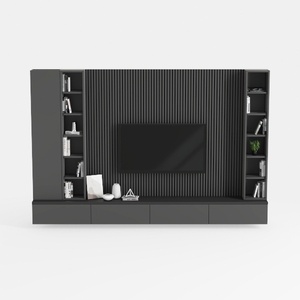
Modern Minimalist Black Solid Wood TV Wall Cabinet With Storage Shelves 3D Model
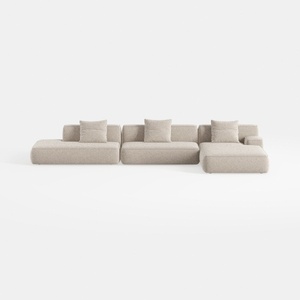
Minimalist Boucle Fabric L Shaped Sectional Sofa 3D Model
Discover Homestyler, the ultimate online home design platform! With its user-friendly design tool, stunning 3D rendering, and vast library of design projects and DIY video tutorials, transforming your space has never been easier. Let your creativity shine and bring your dream home to life!
Дизайн сейчас бесплатно
































