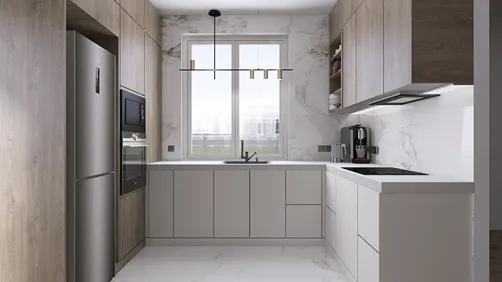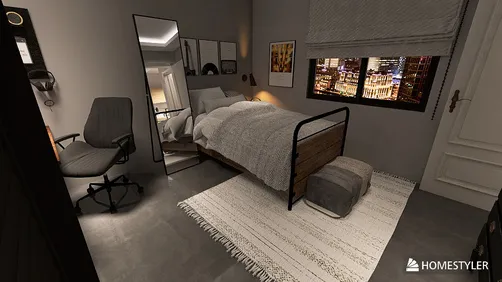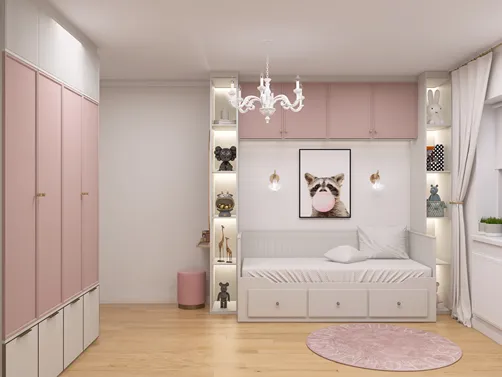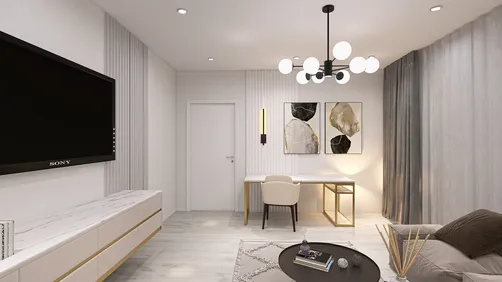
In today’s connected homes, the integration of a versatile TV app transforms how we interact with our living spaces. As streaming services become central to entertainment routines, designing a cozy media nook with ergonomic seating and adjustable lighting enhances both comfort and viewing experience. Thoughtful spatial planning ensures that technology blends seamlessly with home aesthetics, creating an inviting area tailored for relaxation and digital enjoyment.
Direct Answer
Importing 3D models into Procreate can be achieved by exporting compatible file formats like USDZ or OBJ from your 3D modeling software and opening them directly within Procreate’s 3D painting interface. Upon import, Procreate generates paintable texture layers automatically, allowing artists to paint directly onto the model.
A crucial factor for a smooth experience is prepping your model properly beforehand. This includes clean UV layouts, optimized polygon counts, and compatible materials to avoid complications during painting.
Quick Takeaways
Introduction
Many digital artists incorporate 3D models into their creative process, and Procreate has emerged as a favored tool, especially on the iPad. Its 3D import capabilities have quietly revolutionized how concept artists and designers work, offering a novel approach to texture painting.
The main challenge lies not just in importing 3D models into Procreate, but in making sure the models are prepared correctly. Without proper preparation, textures may appear distorted, and painting responsiveness can be sluggish.
This guide outlines a professional workflow—from exporting your model to optimizing it for Procreate’s painting environment.
What File Types Does Procreate Support for 3D Models
Key Insight: Procreate performs best with USDZ files, although OBJ files are supported but less optimal.
File compatibility is often the initial hurdle for artists trying to bring 3D assets into Procreate. Unlike comprehensive 3D suites like Blender or Maya, Procreate specializes in texture painting rather than modeling or animation.
Therefore, it requires lightweight models with clean and predictable material setups.
Professionals often export models from software like Blender or Cinema 4D as USDZ files tailored for Procreate’s texturing workflows.
How to Import 3D Models into Procreate Step by Step
Key Insight: While the import process itself is straightforward, the real effort is in preparation.
Once your model is prepared, importing it into Procreate is quick—often under a minute.
After loading, you can freely rotate, zoom, and paint directly on the model surface with real-time texture updates.
Why Do Some 3D Models Break After Import
Key Insight: Import issues typically stem from problematic UV mapping rather than the file format.
It’s common for models to import but exhibit stretched or misaligned paint textures.
To prevent this, before importing, open models in a dedicated 3D program to verify UV maps are properly laid out and free of overlaps.
Skipping this step often results in unpredictable behavior inside Procreate.
How to Prepare a 3D Model for Procreate Painting
Key Insight: Properly prepared models paint seamlessly inside Procreate, providing an experience akin to painting on a flat canvas.
Professionals follow a preparation checklist prior to importing, focusing on polygon counts between 50,000 and 200,000 for optimal performance on modern iPads.
Large meshes can be imported but tend to degrade brush responsiveness rapidly.
Can You Export the Painted Model Back to 3D Software
Key Insight: Procreate allows exporting updated texture maps compatible with other 3D applications.
This feature enables the painted textures to be utilized again in software like Blender, Maya, or game engines such as Unreal.
Many concept artists create initial sketches by painting directly on 3D models inside Procreate before finalizing their renders elsewhere.
Common Mistakes Artists Make When Importing 3D Models
Key Insight: Most issues arise from using 3D assets meant for rendering instead of texture painting.
Common pitfalls include using overly complex geometry or models designed for cinematic visuals rather than real-time painting workflows.
Simplifying geometry typically enhances the painting experience within Procreate.
Answer Box
To import 3D models into Procreate, export USDZ or OBJ files and open them via the gallery’s import function. Painting can be done directly on the generated texture layers. Ensuring clean UV maps and appropriate polygon count results in smooth performance and precise texture application.
Final Summary
FAQ
Can Procreate import OBJ files?
Yes, Procreate supports OBJ formats, though USDZ files tend to offer better compatibility and material fidelity.
What is the best format to import 3D models into Procreate?
USDZ is generally the preferred format for importing models into Procreate.
Why do my textures look stretched in Procreate?
This is usually due to poor or overlapping UV maps. Editing UV layouts in a 3D tool before import fixes this.
Can you sculpt 3D models in Procreate?
No, Procreate focuses exclusively on texture painting rather than sculpting or creating geometry.
Does Procreate support high-poly models?
While Procreate can load models with high polygon counts, performance decreases rapidly. Optimized models with fewer polygons run best.
Can you export textures after painting?
Yes, Procreate allows exporting updated texture maps for reuse in other 3D software.
Is Procreate good for 3D texture painting?
For illustration and concept art, Procreate’s texture painting capabilities are excellent and preferred by many artists.
Do you need UV maps to import 3D models into Procreate?
Absolutely. UV maps are essential for correctly applying paint cues to the model’s surface within Procreate.
For those using Homestyler to plan interior spaces, integrating 3D models painted with Procreate can enrich virtual renderings, enhancing visualization of design concepts by combining detailed textures with spatial layouts.
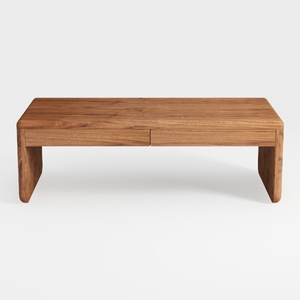
Minimalist Solid Wood Two Drawer Coffee Table 3D Model
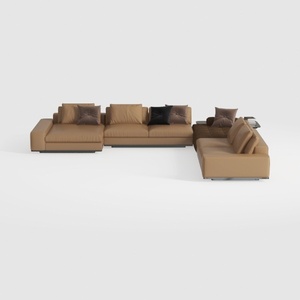

Modern Brown Leather U Shaped Sectional Sofa with Throw Pillows 3D Model
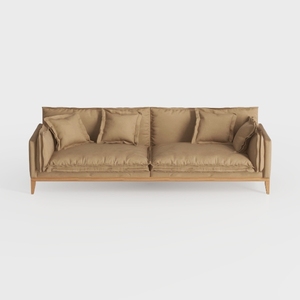
Minimalist Fabric Solid Wood 3 Seat Sofa With Throw Pillows 3D Model
Homestyler offers an easy-to-use online design tool combined with stunning 3D renderings and extensive interior decoration projects. With helpful DIY video tutorials, it’s perfect for anyone looking to create and visualize their dream home effortlessly.
Progetta ora GRATIS