


By importing a PDF as lines in AutoCAD, you can significantly enhance your productivity, transforming static drawings into editable vector graphics. Have you faced challenges when trying to convert a PDF into a format compatible with AutoCAD? This article will guide you through the entire process, making it simpler than ever.
Getting Started with PDF Import in AutoCAD
Before you start importing a PDF, verify that you're using a version of AutoCAD that supports this feature, which has been available since AutoCAD 2017. The steps are quite simple—just follow along!
1. Launch AutoCAD and either create a new drawing or open an existing one.
2. Go to the 'Insert' tab located on the ribbon.
3. Click on the 'Import' dropdown menu and choose 'Attach PDF'. This action will bring up a dialog box allowing you to select your desired PDF file.
4. After selecting your PDF, you will be required to set the insertion point, scale, and rotation. It's crucial to pay attention to these details to ensure precise placement.
Understanding Import Settings
While importing, you can adjust various settings that will dictate how the PDF is processed:
- **Pages to Import**: Decide whether to include all pages or only specific ones from the PDF.
- **Import as Raster Images**: This setting will convert the PDF to a raster image instead of vector lines, which may not be ideal for editing.
- **Scale Factor**: Modify this to guarantee that your drawing dimensions align perfectly with those of the original PDF.
Cleanup and Editing After Importing
Once your PDF has been imported, you might need to tidy up and edit your drawing, as the import process may require adjustments.
- Utilize the ‘Trace’ function to sketch lines over the imported PDF, resulting in cleaner vector graphics.
- The ‘Pedit’ command is helpful for trimming or merging any unnecessary lines.
Making these adjustments will ensure that the imported lines serve their purpose effectively in your AutoCAD drawings, enhancing your overall design workflow.
FAQ
Q: Is it possible to import any PDF file into AutoCAD? A: Not every PDF is suitable for import. Ideally, your PDF should consist of vector graphics to achieve optimal results.
Q: What should I do if my PDF appears as a raster image? A: Make sure you are using the correct settings during import—verify that you’re importing as vector lines for best outcomes.
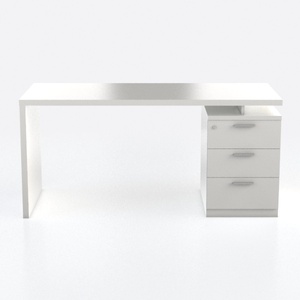
Lufeiya White Desk with 4 Drawers - 47 inch Gaming
VINGLI Folding Chairs All Steel Metal Frame

CubiCubi 63" L Shaped Executive Standing Desk with
Looking to transform your space? Try Homestyler! This user-friendly online design platform offers a fantastic design tool, stunning 3D renderings, and an array of inspiring projects and video tutorials. Easily bring your home ideas to life and explore your creativity today!
立即免费设计
































