

Flattening a 3D model using Rhino may appear daunting, yet it is an essential ability for designers aiming to produce precise 2D patterns or drawings. This guide simplifies the process of flattening any 3D geometry, making it a breeze for you.
Comprehending the Flattening Procedure
Before you jump into the instructions, it’s crucial to understand what flattening involves. This process takes a 3D model and transforms its three-dimensional attributes into a two-dimensional format, all while maintaining the integrity of the original design details. This technique is particularly valuable in industries like fashion design, furniture crafting, and architectural planning. Utilizing tools such as Homestyler can further enhance your design experience by allowing you to visualize these flat designs more effectively.
Step-by-Step Instructions to Flatten Your Model
1. **Choose Your Model**: Start by loading your 3D model into Rhino. Use the selection tool to highlight the specific object that you aim to flatten.
2. **Execute the ‘UnrollSrf’ Command**: Head to the command line and input 'UnrollSrf'. This command acts as a vital tool for transforming surfaces. It applies to a flat section of your object to develop a projected outline.
3. **Modify Settings**: A dialog box will pop up allowing you to modify settings like edge inclusion or maintaining surface continuity. Select the options that align best with your project requirements.
4. **Review and Finalize**: Take a moment to preview the flattened model to ensure all details are preserved. Once you are pleased with the outcome, finalize the action to generate your 2D layout.
Tips for Achieving Optimal Results
For the best outcomes during the flattening process, keep these tips in mind:
- **Streamline Complex Geometries**: If the model is highly detailed or includes multiple curves, consider simplifying those features initially to facilitate smoother flattening.
- **Experiment with Various Commands**: Different surfaces might necessitate alternative commands, such as 'Make2D' or 'DupBorder', to achieve the desired flatness. Test out options to discover the most effective technique for your specific model.
- **Consider Material Usage**: When preparing to cut out your flat design, assess how much material you’ll need. This foresight can result in efficient cutting practices and reduced waste.
Frequently Asked Questions
Q: Is it possible to flatten multiple objects simultaneously in Rhino? A: Absolutely! You can select multiple objects and apply the flattening commands to all selected items at once. Just remember to validate each object afterward!
Q: What should I do if the flattened model appears incorrect? A: Double-check your settings during the flattening procedure, and ensure you’ve simplified the model if necessary due to its complexity.

Minimalist Fabric Curved Sectional Sofa 3D Model
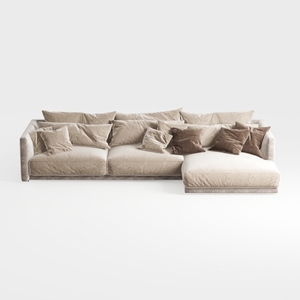
Minimalist Velvet L Shaped Sectional Sofa with Throw Pillows 3D Model

Rustic Solid Oak Square Coffee Table with Geometric Inlay Pattern 3D Model
Looking to transform your space? Homestyler is the ultimate online home design platform featuring a user-friendly design tool, stunning 3D renderings, and a wealth of DIY video tutorials. Easily explore and implement your interior design ideas today!
今すぐ无料でデザイン
































