

Designing your own 3D model for Snapchat can be a fulfilling endeavor, allowing you to personalize lenses, filters, or augmented reality experiences. To embark on this journey, you should have foundational 3D modeling abilities and be acquainted with suitable file formats like .obj, .fbx, or .glb. Start by choosing a 3D modeling application—Blender is highly recommended and free, while sophisticated software such as Maya or 3ds Max provides advanced functionality. Capture your concepts with sketches or reference imagery to aid your modeling efforts. Develop your asset within the selected software, ensuring a low polygon count to optimize performance within Snapchat’s AR setting, while also focusing on texture quality and UV mapping. After finishing your model, export it in a format compatible with Snapchat’s Lens Studio. Import your file into Lens Studio, where you can refine, rig, animate, and incorporate interactive features into your creation. Testing is essential—utilize the preview features to assess both appearance and performance across various devices before launching your final lens.
Tips:
As a designer, I recommend paying attention to the lighting and environment in which your 3D model will be featured on Snapchat. Careful selection of materials and the addition of real-time shadows can significantly elevate the visual appeal. For those desiring more meticulous control over the layout or planning to implement their model in interior AR setups, utilizing a 3D floor planner can be invaluable in visualizing and adapting your creation to virtual spaces. Additionally, consider using Homestyler to craft and visualize your interior designs effectively.
FAQ:
Q: What file formats are supported by Snapchat Lens Studio for 3D models?
A: Snapchat Lens Studio supports file formats such as .fbx, .obj, and .glb for 3D models.
Q: Is it possible to create Snapchat-compatible 3D models without any prior experience?
A: Absolutely! Beginners can leverage intuitive tools like Blender and follow online resources to design basic models.
Q: How can I optimize my 3D model for Snapchat filters?
A: To ensure smoother performance on mobile devices, maintain low polygon counts and utilize compressed textures.
Q: What is the best free tool for creating 3D models for Snapchat?
A: Blender is a popular choice, being free and packed with powerful features for 3D modeling and exporting.
Q: How do I incorporate my 3D model into Snapchat’s AR lenses?
A: Simply import your exported model into Snapchat’s Lens Studio, where you can animate and release your lens with ease.
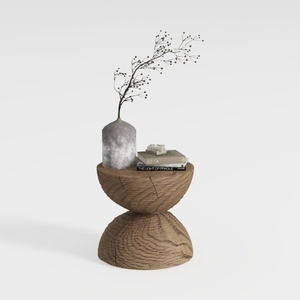

Minimalist Fabric L Shaped Sectional Sofa with Metal Legs 3D Model
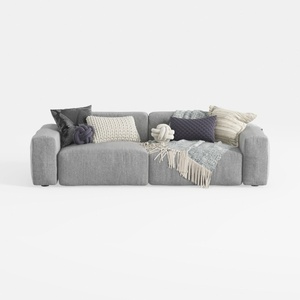
Minimalist Fabric Large Sectional Sofa with Decorative Pillows 3D Model
Looking to transform your space? Homestyler is your go-to online design platform! With its user-friendly design tool, stunning 3D renderings, and a wealth of DIY video tutorials, you can easily explore creative ideas and bring your dream home to life. Start designing today!
Concevez maintenant gratuitement
































