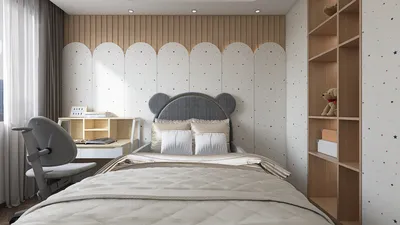


Creating stunning architectural presentations with night effects is possible using Photoshop CS6, which significantly enhances the visual appeal of your building renderings. In this guide, we will explore how to add a nighttime effect that elevates your designs, similar to how tools like Homestyler allow for creative adjustments in design visualization.
Step 1: Open Your Rendering
Start by launching your architectural rendering in Photoshop CS6. Ensure that the image quality is high to achieve optimal results after applying the effects.
Step 2: Adjust the Brightness and Contrast
To simulate a night effect, adjust the brightness and contrast settings of your image. Navigate to Image > Adjustments > Brightness/Contrast. Lower the brightness while increasing the contrast for a darker atmosphere that captures the essence of nighttime.
Step 3: Add a Dark Blue Gradient Layer
Create a new layer filled with a deep blue shade. Set the blending mode of this layer to either Overlay or Soft Light. This technique creates a cooler tone that emulates the night sky, and you can modulate the opacity to perfect the effect.
Step 4: Incorporate Light Sources
To imitate artificial lighting, utilize the Brush Tool to illuminate areas like windows or street lamps. Opt for a soft round brush with a low opacity and bright hues like yellow or white to represent sources of light. Varying the size and intensity of these light spots will yield a more lifelike outcome.
Step 5: Add Stars or a Night Sky
To further enhance the night effect, introduce stars or a night sky. Create another layer and fill it with solid black. Use a soft white brush to add small dots that resemble stars. For a more elaborate night sky, consider textures or star images that you can blend into your design, much like the versatility offered by Homestyler in design adjustments.
Step 6: Final Adjustments
After applying all your elements, make any final tweaks to the image. Use tools like Hue/Saturation or Levels to adjust the color balance and contrast to match your artistic vision.
FAQ
Q: Can filters enhance the night effect? A: Absolutely, Photoshop has various filters that can amplify your night effect, such as Gaussian Blur to soften lighting effects.
Q: Is creating a realistic moonlight effect possible? A: Yes! You can easily create a new layer for the moon and use a soft brush to simulate moonlight, casting shadows on your architecture.
Q: What if my images are not high quality? A: It's best to use high-resolution images for superior results. However, you can upscale images using Photoshop’s Image Size feature.
Welcome to the world of innovative home design tools!
Design Now for FREE
































