


Transforming a 3D model into a PNG image goes beyond mere technicality; it serves as a powerful means to showcase your designs effectively on various platforms. By utilizing this image format, you can greatly improve the visibility and attractiveness of your work in presentations, portfolios, or online exhibits. In this comprehensive guide, we'll delve into the straightforward steps required for this conversion, utilizing tools like Homestyler where applicable.
Exploring the Advantages of PNG Format
Before jumping into conversion methods, it’s crucial to comprehend the benefits of exporting a PNG from your 3D model. PNG files are acclaimed for their superior visual quality and the ability to maintain transparent backgrounds. This feature enables effortless integration of your designs into diverse contexts without the disruption of unwanted backgrounds, allowing your work to shine.
Step-by-Step Process to Convert Your 3D Model to PNG
Follow these detailed steps to efficiently convert your 3D model into PNG format:
1. **Choose Your 3D Software**: Start by selecting the right 3D software for your task, such as Blender, SketchUp, or Autodesk Maya. Each of these applications offers robust rendering capabilities to bring your 3D models to life.
2. **Import Your Model**: Open your chosen application and import the 3D model you aim to convert. Make sure the model is appropriately displayed and scaled in the viewport for the best visibility.
3. **Set Up Your Scene**: Adjust the camera angle and lighting to accentuate your model's features. Proper lighting can dramatically enrich the final image, making your model much more captivating.
4. **Render the Model**: Access the render feature within your software. This step will create a 2D image representation of your 3D model. Be sure to select PNG as the output format to utilize its transparency features effectively.
5. **Save the Rendered Image**: Once rendering is complete, save your final image file. Specify your preferred resolution and file name, then finalize the saving process.
Enhance Your PNG Conversion Outcomes
To boost the quality of your PNG conversions, consider these useful suggestions:
- Optimize background settings to improve contrast with your model for a more vibrant image.
- Try different camera angles and lighting setups to capture the most attractive perspective of your model.
- Ensure your graphic card drivers are updated to enhance rendering efficiency and performance.
Frequently Asked Questions (FAQ)
Q: What software is best for converting a 3D model to PNG?
A: Recommended options include Blender, SketchUp, Autodesk Maya, or any 3D modeling software with robust rendering capabilities.
Q: Can I convert multiple models simultaneously?
A: Yes, many software choices support batch processing, enabling you to convert several models to PNG at once.
Q: Will the PNG image quality reflect the original model's quality?
A: The PNG quality will directly depend on the rendering resolution, so make sure to render at a high resolution for the best results.


Minimalist Cream Fabric Modular Sectional Sofa 3D Model
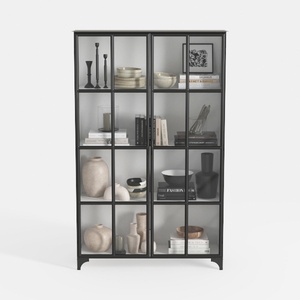
Triple Wide 5-Tier Bookshelf, 70.87" L x 79.13" H
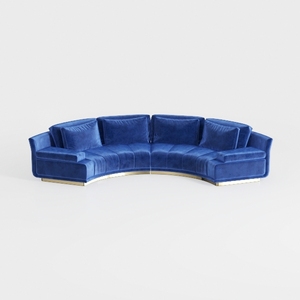
Modern Navy Velvet Gold Base Curved Sectional Sofa 3D Model
Homestyler is your go-to online home design platform! With its intuitive design tool, stunning 3D renderings, extensive design projects, and helpful DIY video tutorials, you can easily create and visualize your dream spaces—perfect for any homeowner or designer looking for inspiration!
Design jetzt kostenlos
































