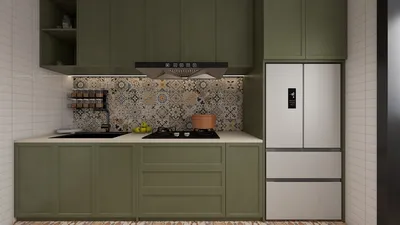


Verifying the normals on a 3D model is a crucial step to ensure that your model renders accurately. Normals define the direction that the surface of your model faces, and misalignment can lead to problems such as inverted surfaces and unusual shading. In this article, we will discuss how to check and correct normals in your 3D models, enhancing both your workflows and your final outputs, especially when using tools like Homestyler for interior design projects.
What Are Normals?
Normals are vectors that extend perpendicularly from the surface of your 3D geometry, indicating the orientation of that surface. When normals are incorrectly directed—such as facing inward—it can result in rendering anomalies. Grasping this concept is essential as it can prevent significant complications in your modeling endeavors, especially if you are incorporating software like Homestyler for your projects.
How to Check Normals
1. **Utilize Your 3D Software**: Most 3D modeling applications come with integrated tools for visualizing normals. In Blender, for instance, you can enter Edit Mode, select your geometry, and enable normals visibility from the Overlays section. This will display the direction of each normal with lines extending from the surface, assisting you in precise modeling.
2. **Recalculate Normals**: If you come across flipped normals, recalculating them is straightforward. While in Edit Mode in Blender, select all the geometry and press Shift + N to recalculate the normals. Being aware of the tools at your disposal is vital for effectively managing your 3D designs, including those created in Homestyler.
Correcting Normals
1. **Manual Correction**: When some normals still appear incorrect, you may manually adjust them. While in Edit Mode, select the problematic face(s) and use Alt + N to access the normals menu, where you can choose to flip them back to the correct orientation.
2. **Cleaning Your Geometry**: Overlapping faces or other geometry issues can also cause normals to appear incorrectly. Ensure your mesh is tidy and devoid of unnecessary vertices and faces, which is essential for proper rendering. Reflect on how you commonly clean up your meshes to avoid these pitfalls, especially if you are using advanced platforms like Homestyler.
Frequently Asked Questions
Q: What indicators are there for flipped normals? A: Flipped normals can result in faces showing as black or invisible in a render, creating bizarre lighting behaviors on the surface of your model.
Q: Is it possible to fix normals in any 3D software? A: Absolutely, most 3D software, including Maya, 3ds Max, and ZBrush, are equipped with tools specifically for visualizing and rectifying normals, enhancing your modeling experience.
Q: How can I avoid issues with normals? A: To prevent problems with normals, consistently verify the integrity of your mesh during the modeling phase and adopt clean modeling practices. This will help maintain the quality of your 3D models, making them suitable for platforms like Homestyler.

Minimalist Glass Top Solid Wood Base Irregular Coffee Table 3D Model
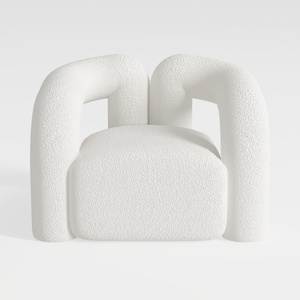
Minimalist Boucle Fabric Armchair Modern Unique Design 3D Model
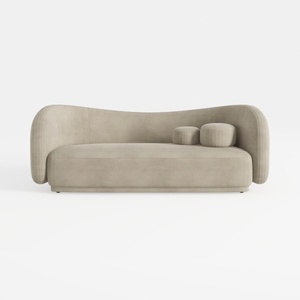
Minimalist Velvet Curved Living Room Sofa 3D Model
Homestyler is your go-to online home design platform, offering a user-friendly design tool that makes transforming spaces easy. With stunning 3D renderings, a wealth of design projects, and informative video tutorials, it empowers you to unleash your creativity and design your dream home effortlessly!
Design Now for FREE
































