

Altering the orientation of certain pages in a document is a common necessity, whether you are utilizing Microsoft Word, Google Docs, or any other word processing software. Typically, documents come with a default setting of either portrait (vertical) or landscape (horizontal) for every page. However, if you wish to make a single page landscape while keeping the others in portrait format—or the other way around—you must modify the page setup settings specifically for that section.
In Microsoft Word, position your cursor at the beginning of the page you intend to change. Navigate to Layout > Breaks, and insert a Next Page Section Break both before and after the page in question. Next, while on the targeted page, alter its orientation by going to Layout > Orientation and selecting either Portrait or Landscape. This adjustment will only impact the section created between your breaks.
When it comes to Google Docs, the method is slightly less straightforward. You can adjust the page orientation for your entire document or for a specific section by selecting File > Page setup. That said, section-specific orientation is being gradually rolled out, and may not be available to everyone just yet.
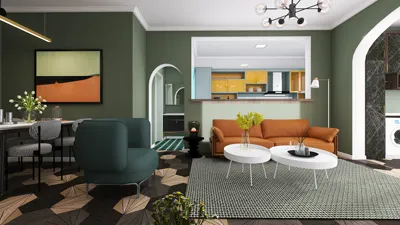
For those in design, spatial orientation extends beyond mere documents—it's essential for visualizing spaces as well. Imagining how a room flows in both portrait and landscape formats is akin to utilizing professional room planning software like Homestyler, enabling you to alter perspectives and optimize layouts. Whether drafting on paper or through digital means, the flexibility of orientation significantly improves both readability and spatial design.
Tips 1:
Always verify the section breaks within your document to avoid potential formatting issues when changing the page orientation. This ensures a smooth transition between portrait and landscape pages.
FAQ
Q: Is it feasible to set distinct orientations for pages in Word without using section breaks?
A: No, utilizing section breaks is essential for applying different orientations to individual pages in Microsoft Word.
Q: Can I apply landscape orientation to a single page in Google Docs?
A: Currently, Google Docs is in the process of introducing section-specific orientation, but this feature may not yet be accessible to all users.
Q: Why can section breaks occasionally disrupt formatting?
A: Section breaks can carry over formatting attributes such as headers and footers, which may necessitate further adjustments after changing the page orientation.
Q: Is landscape orientation suitable for specific content types?
A: Indeed, landscape orientation is especially beneficial for accommodating wide tables, images, and architectural plans where horizontal space is advantageous.
Q: How can design professionals gain from adjusting page orientation?
A: Modifying orientation allows for superior representation of floor plans and visual layouts, enhancing clarity in presentations and adapting documents to diverse design requirements.
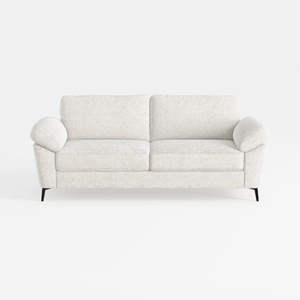
Minimalist Fabric Loveseat Sofa with Black Metal Legs 3D Model

Minimalist Solid Oak Round Coffee Table 3D Model
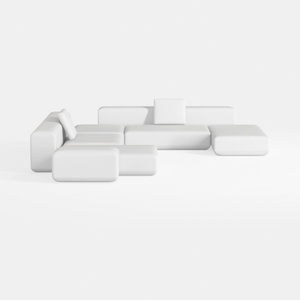

Minimalist Modern White Fabric Modular Sectional Sofa 3D Model
Homestyler is your go-to online home design platform, perfect for both beginners and experienced designers. With its user-friendly design tool, stunning 3D renderings, inspiring design projects, and helpful video tutorials, creating your dream space has never been easier or more enjoyable!
Desain sekarang Gratis
































