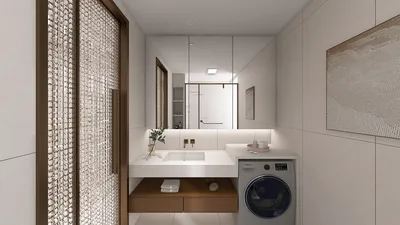


PowerPoint includes a built-in 3D model feature that empowers you to craft captivating and interactive presentations. If you're eager to incorporate text onto your 3D models in PowerPoint, follow this simple guide to enhance your slides while adhering to professional design standards.
As a designer, I strongly advocate for placing text without overcrowding your visuals—achieving balance is crucial. If you're exploring ways to smoothly integrate text onto the surface of 3D models, a more advanced modeling software may be necessary prior to bringing it into PowerPoint. Nonetheless, many presentation objectives can be successfully met through creative layouts, appropriate grouping, and layering directly within PowerPoint.
For professionals who regularly engage with spatial layouts, utilizing digital tools such as a 3D Floor Planner can significantly enhance the interaction between text, objects, and backgrounds—providing realistic previews and inspiring more immersive presentations. Platforms like Homestyler can also complement this process, enabling users to visualize their designs better.
Tips 1:
Ensure your text remains succinct while employing high-contrast colors for optimal readability against intricate 3D backgrounds. If legibility issues arise, consider using gentle drop shadows or translucent text boxes to visually separate the text from the model.
FAQ
Q: Is it possible to write directly on the surface of a 3D model in PowerPoint?
A: Unfortunately, PowerPoint does not permit direct text placement on 3D models. Instead, utilize layered text boxes positioned above or around your 3D object.
Q: Which 3D model file formats are compatible with PowerPoint?
A: PowerPoint accepts .fbx, .obj, .3mf, and .ply formats for the inclusion of 3D models.
Q: Can I animate both 3D models and text simultaneously?
A: Absolutely! You can group your text alongside your 3D object and apply entrance or emphasis animations to both for synchronized effects.
Q: Why does my text shift position when I rotate the 3D model?
A: Text boxes stay on the slide layer, unaffected by the model’s rotation. To maintain visual alignment, consider grouping the objects or limiting rotation if accurate alignment is essential.
Q: Are there enhanced tools for the interactive combination of 3D visuals and text?
A: For superior integration, explore specialized design tools or a 3D Floor Planner, such as Homestyler, which provides greater control over layering, rendering, and interactive text placements.
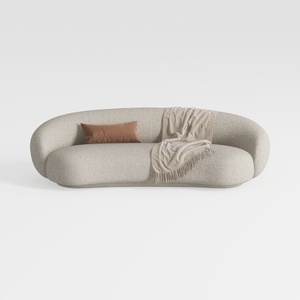

Minimalist Boucle Fabric Curved Sofa With Throw Pillow And Blanket 3D Model
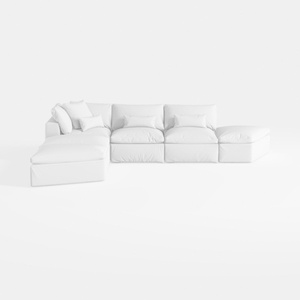
Minimalist White Fabric L Shaped Sectional Sofa 3D Model
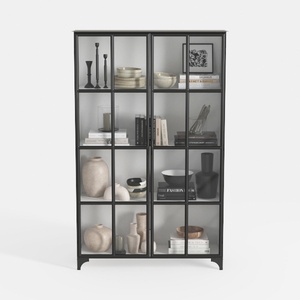
Triple Wide 5-Tier Bookshelf, 70.87" L x 79.13" H
Discover the ease of home design with Homestyler! This intuitive online platform offers a robust design tool, stunning 3D renderings, and a wealth of design projects and DIY video tutorials. Bring your vision to life effortlessly—perfect for both beginners and seasoned designers alike!
Дизайн сейчас бесплатно
































