


Enhancing the visual appeal of your presentations in PowerPoint is simple when you add color to your 3D models. This technique can significantly improve the clarity and impact of complex visuals. To start, insert your 3D model by navigating to Insert > 3D Models and selecting the appropriate option from your device or stock images. Once the model is in place on your slide, click on it to activate the built-in 3D Model Tools found under the ‘Format’ tab. Here, you will have access to basics like adjusting lighting, shadows, and effects. For a more polished look, it's beneficial to pre-color your model using a dedicated 3D modeling application before importing it. Programs such as SketchUp, Blender, or Tinkercad are ideal for this task. Most 3D file formats, including .fbx, .obj, and .3mf, allow you to integrate textures and colors directly into the model, ensuring that when you re-import the colored version to PowerPoint, the hues remain intact. Although PowerPoint lacks painting capabilities for 3D models, modifying aspects like transparency, shadows, and lighting can significantly affect how colors are perceived in your presentation.
Designer Tips:
It's crucial to establish a harmonious color palette before you begin working on your PowerPoint assets. I recommend utilizing specialized design tools, like those offered by Homestyler, to experiment with color combinations and visualize how they will interact within your spaces. Designing in a virtual 3D environment allows you to preview color choices, enabling you to make informed adjustments for greater impact in your presentations.
Frequently Asked Questions
Q: Can I paint directly on a 3D model within PowerPoint?
A: Unfortunately, PowerPoint does not feature direct painting tools for 3D models, requiring you to add colors in a 3D editing software prior to importing them.
Q: What are the most effective file formats for retaining colors on 3D models in PowerPoint?
A: The file formats .fbx, .obj, and .3mf are best suited for preserving color and texture when imported into PowerPoint.
Q: How can I modify the look of a 3D model in PowerPoint?
A: You can use the ‘Format’ tab to adjust settings such as lighting, shadow, and transparency for subtle enhancements in color appearance.
Q: Why does my 3D model lose color after importing into PowerPoint?
A: Models may lose their textures or colors if exported improperly. Always make sure to embed materials and textures while saving from your 3D modeling software.
Q: Are there any free resources to help me color 3D models before importing them to PowerPoint?
A: Yes, several tools like Blender, Tinkercad, and SketchUp provide free options for applying colors and textures to 3D models before exporting them for use in PowerPoint, alongside tools like Homestyler that assist in visualization.
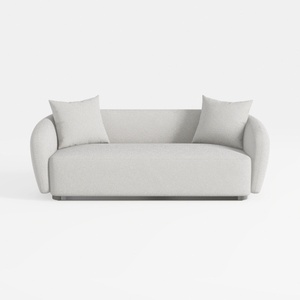
Minimalist Boucle Fabric Living Room Sofa 3D Model
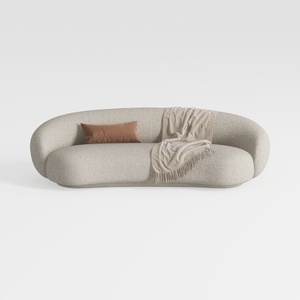

Minimalist Boucle Fabric Curved Sofa With Throw Pillow And Blanket 3D Model

Minimalist Black Solid Wood Irregular Coffee Table 3D Model
Homestyler is an outstanding online home design platform that empowers you to create stunning interiors effortlessly. With its intuitive design tool, impressive 3D renderings, inspiring design projects, and informative video tutorials, you can easily transform your home into a masterpiece—no experience needed!
Diseño ahora GRATIS
































