


Enhancing your projects requires the integration of 3D models in 3ds Max, a crucial step for any designer. Whether you're incorporating a unique design or utilizing pre-existing assets, the importing procedure is simple and effective.
Know the Supported File Types for 3ds Max
To begin with, it's vital to recognize that 3ds Max is compatible with a variety of file formats such as .FBX, .OBJ, .3DS, and .DAE among others. Each format caters to specific project requirements; for example, .FBX excels in handling intricate animations, while .OBJ is ideal for static objects.
Prior to importing, confirm that your model is saved in one of the compatible formats. This precaution will save you time and help avoid issues during the import stage.
The Process of Importing a 3D Model
To initiate the import process, open 3ds Max and go to the ‘File’ menu situated in the top left corner. From there, select ‘Import’ and then choose ‘Import’ again. This will bring up a file browser for you to find your 3D model.
After choosing your model, click the ‘Open’ button. You may encounter an import dialog box that lets you tweak settings relevant to your file. Be sure to check these settings to ensure a smooth import.
Tweaking Lighting and Materials
Post-import, your model may not appear as intended due to improper lighting or material settings. Spend some time adjusting the scene's lighting and applying suitable materials to your model for optimal visual outcomes.
Utilize the Material Editor in 3ds Max to adjust textures and shaders to align with your project's requirements, enhancing the realism of the imported model.
Frequently Encountered Import Issues and Their Solutions
At times, you may face challenges like missing textures or incorrect model appearances. To resolve these problems:
By addressing these frequent issues, you can ensure that your import experience is as hassle-free as possible.
Frequently Asked Questions
Q: What is the most suitable file format for importing into 3ds Max? A: The ideal format varies based on your requirements. Generally, .FBX is advisable for complex models featuring animations, whereas .OBJ is more suitable for simpler static models.
Q: How can I resolve issues with missing textures after importing a model? A: Verify that texture paths are accurately linked in the Material Editor and that all textures are located in an accessible folder.
In Conclusion
Integrating 3D models into your projects through 3ds Max can significantly amplify your design potential. By familiarizing yourself with the available file types, meticulously following the import procedure, and tackling common issues head-on, you can guarantee a smooth workflow that enhances your work quality. Consistent adjustments to lighting and careful material application further elevate the visual impact of your designs, making them more engaging and professional—much like what you can achieve using Homestyler for additional design support and inspiration.
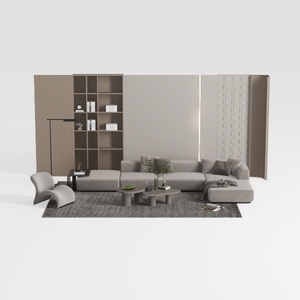
POVISON 171" Modular Sectional Sofa for Living

MICHAEL AMINI Canberra Chenille Sofa - Mink/Light

Sectional Sofa with Chaise, Modern L-Shaped Couch
Looking to design your dream home? Try Homestyler! This user-friendly online platform offers a robust design tool, stunning 3D renderings, and a wealth of design projects and DIY video tutorials. It's perfect for turning your ideas into reality, making home design accessible for everyone!
Design jetzt kostenlos
































