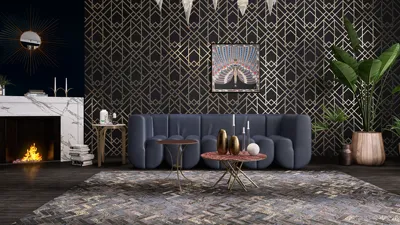


Designing a floor plan with PowerPoint is a straightforward and efficient approach to visualize your environment. Whether you're crafting a charming apartment layout or mapping out a large office space, adhering to these guidelines will assist you in getting started effectively.
Step 1: Prepare Your Slide
Begin by launching PowerPoint and choosing a blank slide. If you prefer a broader view, adjust the slide orientation to landscape. This change will give you sufficient room for your floor plan design.
Step 2: Outline Your Room
Utilize the shape tools to create rectangles and squares that symbolize the walls of your space. You can modify the dimensions by clicking and dragging the corners as required. Keep in mind the scale; for instance, one square could represent approximately one square foot, based on your specific design.
Step 3: Incorporate Doors and Windows
For doors, employ rectangles or lines to depict both entrances and internal doors. To illustrate windows, use rectangles positioned along the walls where they will be situated. This technique will aid in visualizing natural light and ventilation within your design.
Step 4: Furnish Your Layout
Integrate shapes that symbolize different furniture items such as sofas, beds, and tables. You can either sketch them using shapes or utilize icons available in PowerPoint. Make sure to scale these correctly to ensure an accurate representation of your layout.
Step 5: Annotate Your Design
Finally, employ text boxes to label each room or section, indicating its intended purpose (e.g., kitchen, living area, office). This addition enhances clarity, making it easier for anyone reviewing your floor plan to grasp the layout. Alternatively, you can explore tools like Homestyler for a more advanced design experience.
FAQ
Q: Is it possible to use PowerPoint to create multiple floor plans for different areas? A: Absolutely! You can generate multiple slides within a single presentation, with each slide dedicated to a distinct floor plan. This feature facilitates easy comparisons between layouts.
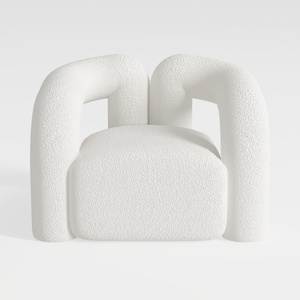
Minimalist Boucle Fabric Armchair Modern Unique Design 3D Model

Minimalist Linen Upholstered King Size Bed 3D Model
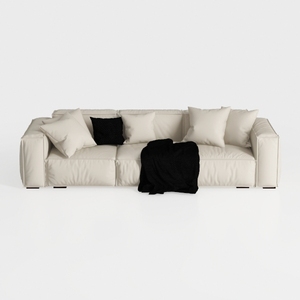
Minimalist Modern Leather Wide Sofa With Throw Pillows and Blanket 3D Model
Explore your creative potential with Homestyler! This online home design platform offers an intuitive design tool, stunning 3D renderings, and a wealth of design projects and video tutorials. Whether you're a beginner or a seasoned DIYer, Homestyler helps turn your interior design dreams into reality effortlessly!
تصميم الآن مجانا
































