


Developing a 3D model for printing using Autodesk Maya involves a series of important steps, guiding you from the initial design phase to exporting the project in a 3D printer-friendly format. To begin, launch Maya and establish your project directory for effective asset management. It’s advisable to utilize the modeling toolset, with a focus on Polygon tools, as these are more suitable for 3D printing—NURBS and curves require conversion to polygons prior to export. Design with manifold geometry in mind; it’s essential to ensure that your mesh is fully 'watertight'—lacking any holes or disconnected surfaces—since 3D printers depend on solid, enclosed geometries. Leverage the 'Mesh Cleanup' tool in Maya to detect and correct any issues such as non-manifold edges or lamina faces. Post modeling, verifying the scale and orientation is vital—configure the units to either millimeters or inches as specified by your printer. Following that, apply the 'Reduce' tool for polygon optimization; high polygon counts can lead to print failures or inefficiencies in processing. Ultimately, export your model as an STL or OBJ file, formats that are typically compatible with slicing software. Before finalizing, review your file in slicer applications to ensure that the mesh translates properly for printing. As a designer, I highly recommend visualizing your creations with the meticulousness required for real room layouts or product prototypes; utilizing advanced modeling software like Homestyler not only provides creative freedom but also secures functional precision, essential whether you’re crafting art pieces, figurines, or practical items. For those keen on cutting-edge 3D visualization or architectural designs, tools such as Homestyler can enhance your experience, allowing you to showcase your printed models in realistic settings.
Tips 1:
It’s crucial to always check your mesh for inverted normals, as these can result in incomplete prints or failures. Utilize Maya's 'Display > Polygons > Face Normal' feature to visually verify surface orientation and make corrections as needed.
FAQ
Q: What format should I export my model for 3D printing from Maya?
A: You should export in STL or OBJ formats, as they are well-supported by most slicing software and 3D printers.
Q: How can I ensure that my Maya model is watertight?
A: Use the Mesh Cleanup tool to identify and resolve any holes or non-manifold edges, ensuring that all faces are properly connected.
Q: Is it possible for Maya to manage textures for 3D printing?
A: Typically, textures aren’t relevant in 3D printing; however, any color information should be embedded within the mesh if your printer allows for it. Most prints are primarily reliant on geometry alone.
Q: Should I opt for high or low poly models when printing?
A: Aim to optimize your mesh to reduce the number of polygons to minimize file size and processing time, while preserving sufficient detail for the desired output quality.
Q: What unit settings are ideal in Maya for 3D printing?
A: Configure Maya's units according to your printer’s specifications, with millimeters being the common choice for accurate scaling.

Meridian Furniture 77054Natural Everson Collection

Bohemian Rattan Round Coffee Table 3D Model
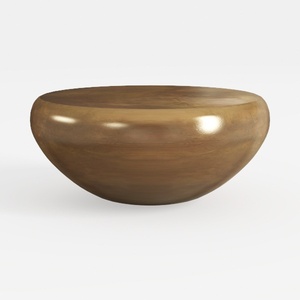
Minimalist Solid Wood Round Coffee Table 3D Model
Looking to transform your home? Discover Homestyler, an exceptional online home design platform. With its user-friendly design tool, stunning 3D renderings, and a wealth of DIY video tutorials, you can effortlessly create your dream space and explore inspiring design projects—all from the comfort of your home!
Design Now for FREE
































