


Developing a texture for a 3D game model is an essential phase in the realm of professional game development, significantly affecting both visual aesthetics and user engagement. Here’s an organized guide to help you through the process:
1. **UV Unwrapping**: Start with your finalized 3D model. Utilize your modeling software—such as Blender, Maya, or 3ds Max—to unwrap the UVs. This technique involves transforming the model’s surface into a 2D map designed to receive textures. It’s important to maintain clean, non-overlapping UV islands for optimal clarity. 2. **Bake or Export UV Layout**: Create a UV map that serves as a reference for texture painting. At this stage, many artists will bake ambient occlusion or normal maps to assist in their painting choices. 3. **Texture Painting or Creation**: Open the exported UV layout in a 2D editing tool like Adobe Photoshop, GIMP, or Substance Painter. Populate the areas with colors, intricate details, patterns, and special effects that mimic various materials (like metal, wood, or skin). Take advantage of layers for added flexibility, apply different filters, and refer to high-resolution source images for a touch of realism. 4. **Seam Management**: Pay close attention to seams by painting over them with overlapping strokes or by using texture clones that can help disguise transitions. 5. **Export As Texture Map**: Save your final creation in game-compatible formats like PNG, JPG, or TGA. If you're working with next-gen workflows, prepare multiple maps: Diffuse (color), Normal (depth), Specular or Roughness (reflectivity), and Emissive (glow). 6. **Apply in Game Engine**: Import your model and texture into your selected game engine (like Unity or Unreal). Look out for any stretching, tiling, or alignment issues, and refine the texture using your modeling or painting application as required. 7. **Test in Lighting**: Ensure that your texture appears realistic under different lighting conditions. Minor adjustments might be required to enhance realism. As an interior designer, I see the artistry involved in texturing as akin to selecting fabric samples and paint colors; every choice contributes to the overall atmosphere. For instance, opting for realistic textures for surface layers is comparable to determining the best materials for countertop finishes or wall treatments in physical spaces. If your aim is to recreate authentic interiors in your game environments, excelling in meticulous texturing can grant you that immersive visual quality. Just like professionals depend on sophisticated layout tools for accurate room designs, precise texture mapping and UV layouts are crucial for achieving high-quality 3D visuals—much akin to the detailed planning required in a Homestyler project for interior design.
Tips 1:
Begin with simple modular objects before advancing to intricate characters or environments. Practicing by texturing basic props such as crates, chairs, or lamps will enhance your skills and build confidence as you progress to more detailed models.
FAQ
Q: What software should I use for creating textures for 3D models?
A: Commonly used programs include Photoshop, Substance Painter, GIMP, and Krita, combined with Blender, Maya, or 3ds Max for UV unwrapping.
Q: What types of texture maps are essential for 3D game models?
A: Essential maps include Diffuse (color/albedo), Normal (depth/detail), Specular/Roughness (reflective properties), Emissive (self-illumination), and occasionally Height/Displacement maps.
Q: How can I prevent visible seams in my 3D textures?
A: Ensure that your UV islands are arranged logically, paint over seams, apply clone/spot tools, and review the model in real-time for necessary adjustments.
Q: What is the recommended image format for game textures?
A: PNG and TGA are preferred for their quality and support for transparency, while JPEG is typically chosen for less significant assets as it offers higher compression.
Q: Is it acceptable to use photographic images as textures for 3D models?
A: Absolutely, though images may need editing, re-tiling, and mapping adjustments; always verify that you possess the rights to use your photo sources.
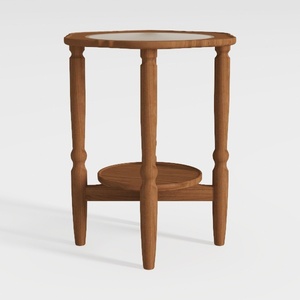

HOOBRO Small Round Side Table with Charging

Minimalist Solid Oak Round Coffee Table 3D Model
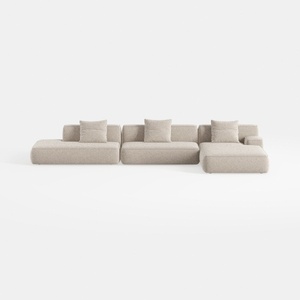
Minimalist Boucle Fabric L Shaped Sectional Sofa 3D Model
Discover the magic of home design with Homestyler! This user-friendly platform offers a powerful online design tool, stunning 3D renderings, and a wealth of design projects and DIY video tutorials. Turn your creative vision into reality effortlessly and transform your space today!
立即免费设计
































