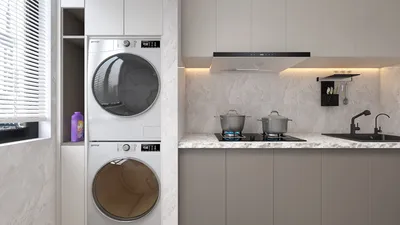


Designing a floor plan with PowerPoint is both straightforward and effective. Whether you're a professional interior designer or a homeowner aiming to transform your space, PowerPoint provides an intuitive interface to visualize your concepts. Here’s how to utilize this tool for crafting an impressive floor plan, incorporating useful features like those offered by Homestyler.
Step 1: Configure Your Slide for a Floor Plan
To start, launch a new presentation in PowerPoint, and adjust the slide dimensions to correspond with the actual size of your space. Navigate to the Design tab, select Slide Size, and pick Custom Slide Size. Enter the width and height to match the real measurements of your room.
Next, consider enabling a grid layout to aid in the accurate alignment of your furniture and walls. Activate the gridlines by heading to the View tab and checking the Gridlines option.
Step 2: Outline Walls and Structure
Using the Shapes tool located in the Insert tab, start outlining the walls of your rooms. Rectangles work well for straight walls, while curves represent rounded edges effectively. You may fill the shapes with suitable colors or leave them transparent for better visualization of your layout.
Once the walls are established, it's essential to indicate the locations of doors and windows. You can draw small rectangles or lines to denote these features accurately. Clearly labeling each area can help avoid any confusion later on.
Step 3: Populate with Furniture and Decor
After your layout is laid out, it’s time to fill in your floor plan with furniture. You can create your own using shapes or find pre-made icons from various online resources. Search for free assets that provide furniture icons that you can seamlessly integrate into your PowerPoint presentation.
While placing your items, consider the functionality of your space and the flow of movement through it. This phase is critical for ensuring that your design is both practical and visually appealing. Utilize PowerPoint’s alignment tools to maintain organization.
Step 4: Evaluate and Revise
Once all components are added, take a step back to evaluate your floor plan. Does it fulfill your intended purpose? Are there any changes required to enhance flow or usability? Now is the time to make any adjustments. Seeking feedback from friends or colleagues can also lead to valuable insights on your design.
When you are pleased with your work, save your file and consider using PowerPoint’s export feature. This allows you to create a PDF or image file for easy sharing. Such capabilities can help when presenting your floor plan to clients or sharing it with family and friends, or even consider using platforms like Homestyler for additional design options.
FAQ
Q: Is it possible to print my floor plan created in PowerPoint? A: Yes, you can print your floor plan directly from PowerPoint, ensuring that the dimensions are correctly set in the slide configuration.
Q: Can I easily modify the floor plan later? A: Certainly! PowerPoint gives you the flexibility to edit shapes, text, and images seamlessly, making it simple to update your floor plan as needed.
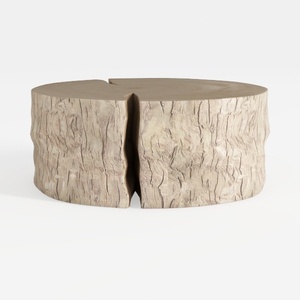
Rustic Solid Wood Split Log Coffee Table 3D Model


Rustic Solid Wood Geometric Octagonal Coffee Table 3D Model

Minimalist Solid Wood TV Stand Cabinet with Slatted Doors 3D Model
Discover the joy of home design with Homestyler! This user-friendly platform offers an intuitive online design tool, stunning 3D renderings, and a wealth of design projects. Plus, with helpful DIY video tutorials, you’ll turn your decorating dreams into reality effortlessly!
立即免费设计
































