Designing 3D models for Procreate may initially appear to be a challenging endeavor, yet with the right resources and techniques, you can effortlessly bring your creative ideas to life. Procreate, renowned primarily for its 2D illustration features, has now expanded to include 3D model painting, enabling artists to imbue their works with depth and dimensionality. In this article, we will guide you through the critical steps necessary to create your own 3D models that can be painted and adjusted within Procreate. First, it is essential to have suitable software for crafting your 3D models. Applications like Blender, ZBrush, and even Tinkercad stand out as fantastic options, each catering to various levels of expertise and functionalities. If you’re just starting out, Tinkercad is an excellent choice due to its user-friendly interface and the convenience of being web-based, eliminating the need for downloads. In contrast, Blender and ZBrush are equipped with powerful tools designed for experienced artists aiming to develop detailed and complex designs. After preparing your software, you can start the modeling process by working with basic shapes and progressively refining them to form your desired object. Keep in mind that modeling is an iterative journey; feel free to explore various shapes and sizes until you reach the desired aesthetic. Once your model is constructed, the subsequent vital step is UV unwrapping. This step involves mapping your 3D model onto a 2D surface, which allows you to apply textures in Procreate. Most 3D software will include a UV mapping tool that you should utilize to guarantee precise texture application on your model. After UV unwrapping, export your model in a format compatible with Procreate, such as OBJ or USDZ. To bring your model into Procreate, simply select the 'Insert a file' option on a new canvas and import your exported model. Once imported, you can manipulate it through rotation, scaling, and positioning to integrate it seamlessly into your artwork. The next step is truly engaging—painting! Leverage Procreate’s extensive brush collection to add colors, textures, and intricate details to your 3D model. You can paint directly onto the model, enjoying a real-time preview of your progress through Procreate’s 3D painting functionality. Remember to try various brushes and settings to unlock unique artistic effects. Finally, make sure to save and export your finished project. Depending on your needs, you can save it as either an image or a video. With continuous practice, you’ll discover that developing 3D models for Procreate not only enriches your artistic journey but also opens doors to new creative possibilities. Keep practicing and fine-tuning your abilities, and you'll soon accumulate a portfolio filled with remarkable 3D artworks to showcase. Enjoy the modeling adventure!
Suggestions
Regularly engage with different materials and tools across your 3D software and Procreate to improve your modeling and painting techniques.
Common Questions
Learn more about the amazing capabilities of Homestyler, which can assist in your design projects while enhancing your overall creative experience.
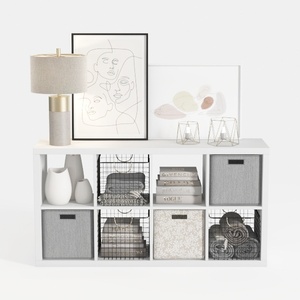
Modern Minimalist White Fabric Metal Storage Cabinet Console Table 3D Model

Minimalist Modern White Open Bookshelf Display Shelf 3D Model
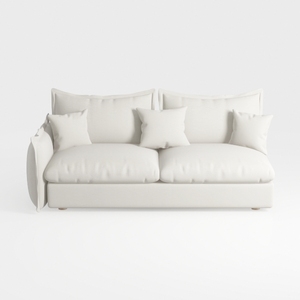
Minimalist White Fabric Loveseat Sofa with Throw Pillows 3D Model
Looking to transform your home? Homestyler is the ultimate online design platform for you! With its user-friendly design tool, stunning 3D renderings, a plethora of design projects, and helpful DIY video tutorials, you'll effortlessly turn your home design visions into reality.
Desain sekarang Gratis