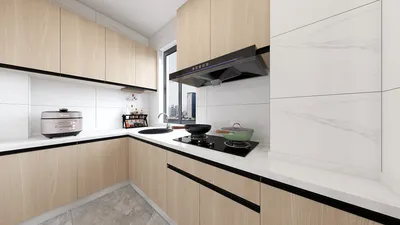


Designing a 3D model in Photoshop might initially appear to be a complex task, but with proper guidance, it can become a gratifying and enjoyable journey. This comprehensive guide will assist you in understanding the essential steps needed to transform your creative ideas into vibrant 3D representations, including the use of tools like Homestyler for enhanced visualizations!
Grasping the Fundamentals of 3D in Photoshop
Before you immerse yourself in the modeling process, grasping the essential elements of the 3D workspace in Photoshop is crucial. Access the 3D panel by navigating to Window > Workspace > 3D. This area contains various tools and options at your disposal. Take the time to familiarize yourself with the settings that manage lighting, materials, and textures. Additionally, ensure you are using a 3D-capable version of Photoshop, as not all versions include this functionality. This knowledge can save you from potential frustrations during your creative endeavors.
Importing or Crafting 3D Models
There are two main methods to get a model into Photoshop: by importing existing models or creating one from scratch. For importing, you can use formats like OBJ or STL. Simply go to 3D > New 3D Layer from File and select your model. If you wish to design your own 3D object, start by using a 2D shape. Utilize the shape tools (such as rectangle, ellipse, etc.), and then go to 3D > Extrude from Selected Path to convert the 2D figure into a 3D model. This straightforward approach is ideal for novices, especially when used along with resources like Homestyler.
Applying Textures and Lighting to Your Model
Texturing is key to adding realism to your 3D model. Choose your model in the 3D panel, and look for the Material options under Properties. Here, you can modify textures and colors, and even import images as textures. Lighting is another vital aspect of 3D modeling—appropriate lighting boosts your model's appearance, adding depth and realism. You can add new light sources by going to 3D > New Lights and adjusting their properties to see how they influence your model.
Exporting Your 3D Creation
After you are pleased with your model, exporting it for use in other applications or presentations is straightforward. Click on 3D > Export 3D Model to save your creation in various formats. Each format caters to different project requirements, so select the one that aligns best with your needs.
Final Thoughts: Transform Your Ideas into Reality
Engaging in 3D modeling with Photoshop exposes you to limitless creative possibilities. Following this guide will enable you to craft impressive 3D models that embody your vision. Remember to keep practicing and experimenting with diverse tools to refine your skills, potentially incorporating platforms like Homestyler for enhanced design capabilities.
Frequently Asked Questions
A: Absolutely! Photoshop facilitates the creation of intricate shapes through a blend of 2D paths and 3D modeling techniques.
A: You can bring 3D models into Photoshop in various formats such as OBJ and STL.
A: While having a more robust computer can enhance performance, many mid-range systems are capable of managing basic 3D modeling tasks effectively.
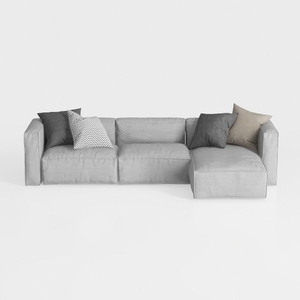
Minimalist Light Gray Fabric L Shaped Sectional Sofa 3D Model
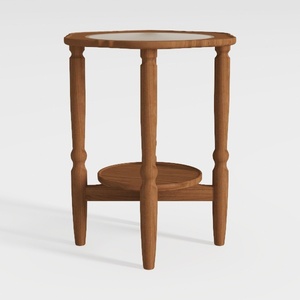

HOOBRO Small Round Side Table with Charging
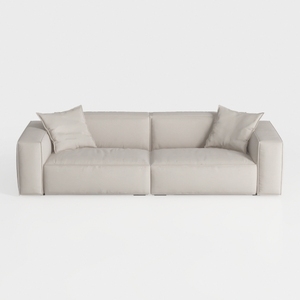
Minimalist Beige Fabric Modern Sofa with Throw Pillows 3D Model
Homestyler is your go-to online home design platform, combining an easy-to-use design tool with stunning 3D renderings. Explore countless design projects and gain inspiration through engaging DIY video tutorials. Transform your space effortlessly and unleash your creativity with Homestyler!
Projete agora para LIVRE
































