

Designing a 3D model for Minecraft can enhance your gaming experience, allowing you to introduce distinctive structures, characters, or decorative items into your virtual world. Although the game features a pixelated, blocky aesthetic, you can create intricate models using external software and seamlessly integrate them into Minecraft. Let’s delve into a detailed guide for crafting 3D models in Minecraft, catering to both novice and seasoned creators.
Step 1: Determine Your Modeling Objective
First, clarify what you plan to design—this could range from a unique block, creature, furniture, or a more elaborate structure. Reference images or sketches may assist in your detailing.
Step 2: Select Appropriate Tools
Tools specifically crafted for Minecraft modeling, such as Blockbench, Cubik Studio, and MrCrayfish’s Model Creator, are ideal for this purpose. These applications enable you to construct cubic models, paint textures, and export files compatible with Minecraft, typically in .json or .java formats.
Step 3: Construct Your Model
Using your selected modeling software, initiate the construction of your model by adding cubes (referred to as 'elements') and positioning them to create your desired form. Ensure accurate dimensions for compatibility with Minecraft's unit system, and maintain reasonable complexity for optimal performance.
Step 4: Texture Your Creation
You can apply textures by painting directly onto your model or by mapping an image as a texture. To achieve a genuine feel reminiscent of Minecraft’s signature pixelated style, it’s best to adhere to the low-resolution look. Many modeling tools provide preview modes to help you visualize your creation in-game.
Step 5: Export Your Model
Once your model is complete, export it in the proper format suited for Minecraft. For the Bedrock Edition, models are generally saved as .json files, whereas the Java Edition often utilizes .java file formats.
Step 6: Import and Test in Minecraft
To add your model to Minecraft, it may require the use of resource packs for textures and blocks, data packs, or mods depending on the edition you are playing. Always remember to back up your world prior to adding new content, and run thorough tests to ensure your model displays correctly in the game.
Designer’s Insight:
As an interior designer, my approach to modeling involves considering how each component will affect the ambiance, layout, and user engagement within a Minecraft space. When customizing interiors or themed environments, utilizing a tool like Homestyler can be beneficial in visualizing and fine-tuning your model before bringing it into the game. This ensures that every detail complements the overall aesthetic and flow of your virtual creation.
Tips 1:
While modeling, keep in mind Minecraft’s characteristic blocky scale—overly intricate models might not integrate smoothly with the game’s environment. Always evaluate your models from various perspectives and different lighting conditions within Minecraft to achieve optimal results.
Frequently Asked Questions
Q: What software is available for creating a 3D model for Minecraft?
A: Notable options include Blockbench, Cubik Studio, and MrCrayfish’s Model Creator, which are specifically designed for modeling in Minecraft.
Q: Is programming knowledge necessary to import a 3D model into Minecraft?
A: Basic importing does not require programming skills, particularly for block or item models using resource packs. However, more intricate models, such as creatures, may necessitate Java knowledge for the Minecraft Java Edition.
Q: Can I utilize Blender or other advanced 3D design software for Minecraft models?
A: Although it is feasible, it tends to be more complicated and entails conversion processes; specialized tools for Minecraft are generally more user-friendly and efficient.
Q: Are there restrictions regarding model size or complexity in Minecraft?
A: Certainly. Highly complex models can negatively impact performance and might not render properly, so it’s advisable to keep designs streamlined and efficient.
Q: How can I create custom textures for my model?
A: Texture editors found in Minecraft modeling tools permit you to either paint pixel-by-pixel or import PNG images for more detailed customization.
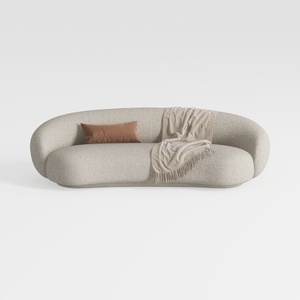

Minimalist Boucle Fabric Curved Sofa With Throw Pillow And Blanket 3D Model

Minimalist Fabric Oversized Sofa 3D Model

Minimalist Glass Top Solid Wood Base Irregular Coffee Table 3D Model
Homestyler is your ultimate online design companion! This user-friendly platform offers a powerful design tool along with stunning 3D renderings, an extensive collection of design projects, and helpful DIY video tutorials. Transform your home effortlessly and unleash your creativity with Homestyler today!
立即免费设计
































