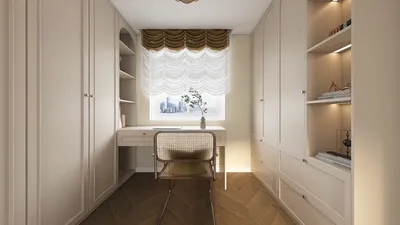


Utilizing Homestyler for crafting 3D cut plans can significantly elevate your interior design projects by offering a vivid visualization of your concepts. This method enables the creation of accurate and intricate cut plans suitable for presentations or construction documentation. In this article, we will delve into crucial steps and pointers for producing effective 3D cut plans using Homestyler.
Getting to Know the Basics of Homestyler
Before you begin making cut plans, it's essential to get acquainted with the interface and functionalities of Homestyler. This versatile design tool seamlessly integrates with various modeling applications, empowering designers to realize breathtaking visualizations.
For those new to the platform, it’s wise to start with simpler models to grasp the rendering parameters and how lighting influences materials. Ensure that you have the latest version of Homestyler installed and properly configured within your 3D modeling environment.
Step-by-Step Guide for Creating a 3D Cut Plan
1. **Model Preparation**: Begin by constructing a comprehensive 3D model of your area. Confirm that all components, including walls, furnishings, and fixtures, are accurately represented.
2. **Camera Configuration**: Position your camera to capture the optimal angle that best portrays your cut plan. This aspect is essential as it will dictate how the cut plan is ultimately rendered.
3. **Determining Cut Plan Geometry**: Employ the cut tool or slicing feature in your modeling software to formulate the cut plane. Specify which elements should be visible in your cut plan such as floor levels or wall placements.
4. **Materials and Lighting Application**: After establishing your cut geometry, apply materials to the surfaces to boost realism. Furthermore, fine-tune the lighting settings within Homestyler to create the desired ambiance and atmosphere.
5. **Render Settings Optimization**: Prior to rendering, confirm that your settings are optimized for high quality. Increasing quality settings yields superior results, though it may lengthen render times. Adjust resolution and sampling according to your requirements.
6. **Rendering Your Cut Plan**: With everything organized, initiate the rendering procedure. Keep an eye on the render progress and make any necessary modifications. Once completed, evaluate the output for any adjustments that may be needed.
Tips for Crafting Effective 3D Cut Plans
- Utilize clean and straightforward geometry to prevent overcrowding in your cut plan.
- Accentuate key features with color or texture variations to attract attention.
- Incorporate annotations or labels for additional context for the viewers.
- Explore various angles and lighting configurations to discover the most impactful presentation of your cut plan.
Frequently Asked Questions
Q: What exactly is Homestyler? A: Homestyler is an advanced design tool that delivers high-quality visualizations for 3D models, especially tailored for architecture and interior design.
Q: Can I integrate Homestyler with any 3D modeling software? A: Homestyler works well with several 3D modeling platforms including 3ds Max and Cinema 4D.
Q: What steps can I take to enhance the quality of my renders? A: Enhancing render quality can be accomplished by refining sampling settings, utilizing high-resolution textures, and optimizing lighting environments.
Welcome to Your No.1 Home Design Software
Design Now for FREE
































