


Generating authentic 3D models of torn fabric can greatly improve the realism and detail in your design projects. This article will delve into how to effectively leverage Blender, along with Homestyler, to create impressive ripped cloth effects utilizing a variety of modeling strategies, texture painting, and shader techniques.
Beginning Your Journey with Blender
To kick things off, ensure you have the latest version of Blender installed. Open a new project file and let's start by crafting a foundational cloth model that will support our ripped effects.
Constructing the Base Cloth Model
1. **Create the Initial Mesh:** Start by adding a plane to your scene. You can do this by pressing Shift + A, then selecting Mesh > Plane. Adjust its size as necessary using the S key for scaling purposes.
2. **Incorporate Subdivision Surface Modifier:** With the plane highlighted, navigate to the Modifiers tab and add a Subdivision Surface modifier. This step smoothens the mesh, setting it up for finer detailing.
3. **Mold the Cloth Shape:** Enter Edit Mode by pressing the Tab key. Use the G key to reposition the vertices, crafting natural wrinkles and folds that mimic how fabric reacts under different conditions.
Creating the Ripped Appearance
To achieve authentic rips, consider applying these techniques:
1. **Vertex Adjustment:** Choose the vertices where you want the rips to occur and pull them apart to shape torn openings. Activate proportional editing by pressing the O key to create a seamless transition between the torn and intact sections of fabric.
2. **Textural Approaches:** Design an alpha mask texture to define the ripped areas. This texture can be crafted in graphic software such as Photoshop or GIMP, allowing for personalized edges that evoke a worn look.
Texturing Your Torn Fabric
1. **UV Mapping:** With your cloth model selected, hit U and choose Smart UV Project. This action will effectively unwrap your model, priming it for texturing.
2. **Material Application:** Switch to the Shading workspace to create a new material for your fabric. Incorporate an image texture node to apply your chosen texture, linking the alpha mask to the material's alpha slot for the ragged sections.
3. **Enhancing Texture Detail:** Add Bump or Normal Map nodes to develop depth and texture within the fabric, further reinforcing the realistic look of your ripped cloth.
Final Adjustments and Scene Rendering
1. **Illumination:** To highlight the intricate features of your fabric, ensure your scene is well-lit. Experiment with different lighting arrangements to reach the most visually appealing results.
2. **Rendering Your Creation:** Set your render preferences under the Output tab. Choose the Cycles rendering engine for greater realism, then hit F12 to see your final rendered masterpiece!
Frequently Asked Questions
Q: Which approaches yield the most realistic ripping effects in Blender? A: A blend of vertex manipulation combined with texture masks produces the most lifelike results.
Q: Can fabric simulations be used to create ripped cloth effects? A: Absolutely! Blender's cloth simulation capability can facilitate dynamic rips and realistic fabric behavior during animations.
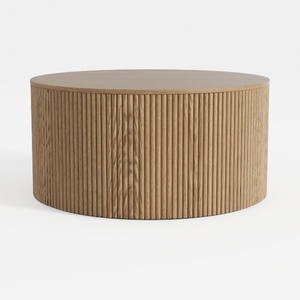
Minimalist Fluted Solid Oak Round Coffee Table 3D Model
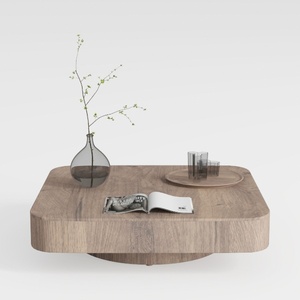
Minimalist Solid Oak Square Floating Coffee Table 3D Model
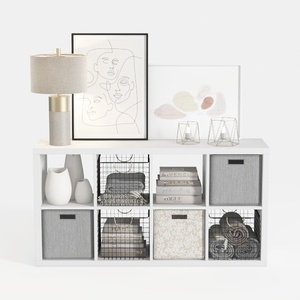
Modern Minimalist White Fabric Solid Wood Storage Cabinet 3D Model
If you're looking to transform your space, Homestyler is a fantastic online platform! With its user-friendly design tool, stunning 3D renderings, and a wealth of inspiring design projects and DIY video tutorials, you'll effortlessly create your dream home. Start your design journey today!
立即免费设计
































