Developing 3D models for Tabletop Simulator allows you to customize your gaming experience by creating unique game pieces, boards, and accessories. This adds a personal flair to your tabletop setup. Whether you are crafting detailed mini figurines or planning an entirely new game board, using the appropriate tools and techniques is essential, as well as understanding the requirements specific to Tabletop Simulator. Let's explore the process step-by-step:
1. Familiarize Yourself with the Requirements:
Tabletop Simulator accepts 3D models in .obj format, with textures typically in .jpg or .png formats. It's advisable to maintain low polygon counts (below 20,000 polygons per object) to ensure optimal performance during gameplay.
2. Select Your Modeling Tool:
There are several popular free tools available, such as Blender, which is robust and open-source, along with SketchUp and Maya. Blender is commonly chosen for its versatility and broad range of export options.
3. Create Your Model:
Begin by designing your object in Blender or your chosen software. Opt for simple geometry for essential game pieces, adding elaborate details only when necessary to maintain performance. After creating your model, apply realistic materials and textures.
4. Optimize for Tabletop Simulator:
Review the scale of your model since Tabletop Simulator uses meters for measurement. Additionally, check that your model's origin point is set to how you'd like it to rest on the table. Eliminate any unnecessary faces or features that won’t be visible during gameplay.
5. Export Your Model:
Save your completed model as an .obj file. Remember to save textures separately in .jpg or .png formats and use standard characters for filenames to ensure compatibility.
6. Import Into Tabletop Simulator:
Launch Tabletop Simulator. In the main menu, navigate to "Create" → "Singleplayer" or "Multiplayer." Right-click on the workspace, select "Objects" → "Custom" → "Model." Upload your .obj file and texture files through the interface, making your new model available in-game.
7. Final Adjustments and Testing:
Evaluate how your model appears and interacts within the game. If necessary, modify the colliders (the shapes for physics interactions). Re-export and update to fine-tune your design as needed.
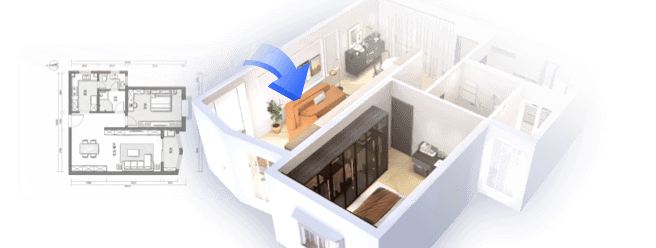
As an interior designer, I perceive interesting similarities between model creation and virtual space planning. Utilizing a 3D floor planner can not only refine the design of game environments but also elevate any digital space. This approach offers users a practical means to visualize and experiment with arrangements, be it for gameplay or real-world applications. By employing visualization tools, you can effectively transform your concepts into tangible designs, whether you’re working on a virtual tabletop project or crafting a contemporary living area with Homestyler.
Tips 1:
Begin with simplicity—while intricate models can be impressive, they may hinder gameplay if not properly optimized. Always assess your models in various tabletop environments and lighting conditions for the best visual and interactive results.
FAQ
Q: What file format should I utilize for 3D models in Tabletop Simulator?
A: You should always use .obj for your 3D models and .jpg or .png for textures.
Q: How can I accurately scale my objects for Tabletop Simulator?
A: Ideally, design your objects using meters for measurement; test them in-game for any final adjustments.
Q: Are animated models allowed in Tabletop Simulator?
A: Unfortunately, animations are not supported; all models must be static.
Q: Which free modeling software is compatible with Tabletop Simulator?
A: Blender is an outstanding, no-cost option for creating and exporting models.
Q: Do models need to adhere to a low-poly limit?
A: Yes, models should remain under 20,000 polygons to ensure smooth performance in Tabletop Simulator.
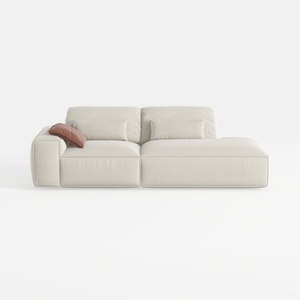
Minimalist Beige Fabric L-shaped Chaise Sofa 3D Model
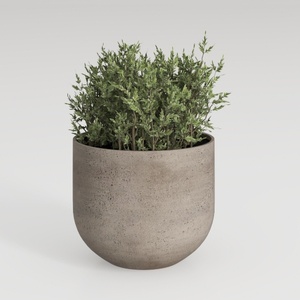
Minimalist Concrete Planter Pot with Indoor Greenery 3D Model
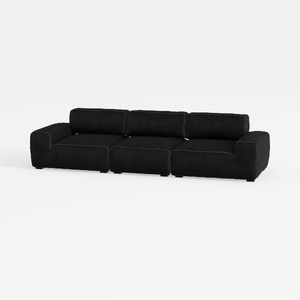

Minimalist Black Fabric Modular Sofa 3D Model
Discover the magic of home design with Homestyler! This user-friendly platform offers an intuitive online design tool, stunning 3D renderings, and a plethora of inspiring projects and video tutorials. Whether you're a beginner or a DIY pro, Homestyler makes transforming your space easy and enjoyable!
Design Now for FREE