


Creating a floor plan using PowerPoint might appear challenging at first glance, but it’s actually quite an easy task! Are you excited to transform your concepts into a professional design? Let's explore the steps together.
Step 1: Preparing Your Slide
Begin by launching PowerPoint and selecting a blank slide. It's essential to adjust the slide dimensions to fit your project requirements. Head over to the 'Design' tab, click on 'Slide Size', and choose 'Custom Slide Size'. Set the width and height based on the scale you wish to use for your floor plan.
Step 2: Drawing Outer Walls
Next, utilize the 'Shapes' tool to create the outer walls of your property. Go to the 'Insert' tab, choose 'Shapes', and select the rectangle shape to sketch the outline of your floor plan. Modify the size by dragging the corners as needed.
Step 3: Incorporating Interior Walls
After establishing the outer walls, it’s time to introduce interior walls. Continue using the rectangle shape or opt for lines for a cleaner look. You may alter the thickness of the lines to distinguish between primary walls and internal partitions.
Step 4: Defining Rooms and Areas
Identify each room with text by selecting the 'Text Box' option under the 'Insert' tab. This step is crucial for labeling spaces such as the kitchen, living area, or study. Drag and resize the text box until it fits perfectly within the respective room.
Step 5: Including Furniture and Fixtures
To elevate your floor plan, think about inserting furniture icons. You can search online for free furniture icons or utilize the built-in shapes available in PowerPoint. Position them within each area to better visualize your design.
Step 6: Finalizing Your Design
After outlining your layout, examine the scale and clarity of the floor plan. Adjust colors and styles to make your design visually attractive. Ensure everything is neatly aligned for a refined appearance and consider using tools like Homestyler for a more detailed visualization.
FAQ
Q: Is it possible to print my floor plan once it's completed? A: Absolutely! Once you are pleased with the design, navigate to 'File', then 'Print' to obtain a physical copy or save it as a PDF for digital distribution.
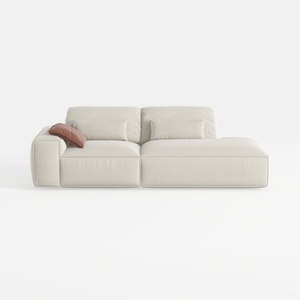
Minimalist Beige Fabric L-shaped Chaise Sofa 3D Model


Modern Pink Velvet Curved 3 Seater Sofa with Decorative Throw Pillows 3D Model

Minimalist Walnut Fabric Loveseat Sofa 3D Model
Homestyler is your go-to online home design platform, perfect for transforming your vision into reality. With its user-friendly design tool, stunning 3D renderings, diverse design projects, and helpful video tutorials, you can effortlessly create your dream space—whether you're experienced or just starting out!
Progetta ora GRATIS
































