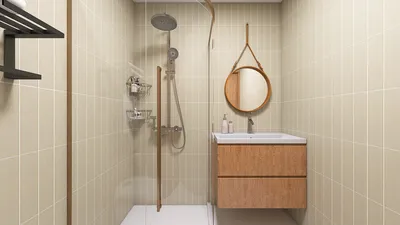


Crafting eye-catching interior design renderings using Photoshop can significantly enhance your presentations and assist clients in visualizing their future spaces. Whether you're a professional designer or a newcomer, honing this skill can greatly improve your portfolio. In this tutorial, we will guide you through the essential techniques for creating captivating interior design renderings with Photoshop, and how tools like Homestyler can complement your design process.
Step 1: Collect Your Materials
Before you jump into Photoshop, it’s essential to gather all required materials, including:
Step 2: Prepare Your Canvas
Launch Photoshop and create a new document with your desired dimensions for the rendering. A recommended initial size is 1920x1080 pixels for landscape orientation. Ensure your resolution is set to 300 DPI for high-quality results.
Step 3: Import Your Floor Plan
Insert your floor plan or sketch onto the canvas. Resize it appropriately using the transform tool (Ctrl + T). This will act as the foundational background for your rendering.
Step 4: Organize Layers for Various Elements
Structuring your elements into layers is vital for straightforward alterations. Create distinct layers for:
Step 5: Create Walls and Floors
Utilize the rectangle tool to draft the walls and color them with your selected shades or textures. Explore online for floor textures, or make your own by using the paint bucket tool and patterns.
Step 6: Add Furniture and Decorative Items
Use the lasso tool or quick selection tool to cut out images of furniture and decor. Incorporate them into your rendering, adjusting their size and position to integrate them seamlessly into the space. Employ layer styles such as shadows and outlines for added depth.
Step 7: Optimize Lighting and Shadows
The right lighting is crucial for bringing realism to your rendering. Use the brush tool with a soft edge to develop light sources and shadows. Tweak the opacity of your brush to achieve softer effects and ensure shadows fall in the opposite direction of your light sources.
Step 8: Add the Finishing Touches
After placing all elements, enhance the image by integrating details such as:
Step 9: Save and Export Your Design
Once you're pleased with your design, save your project in Photoshop (.PSD) format for potential edits. Export your final rendering as .JPEG or .PNG to share with clients or for online presentations.
Conclusion
Producing interior design renderings in Photoshop may initially feel overwhelming, but with practice, you can create visuals that dazzle clients and elevate your design showcases. Remember, every project is a chance to sharpen your skills and display your unique design vision, alongside using tools like Homestyler for a more comprehensive approach.
FAQ
Q: Where can I find high-quality textures? A: Platforms like Unsplash, Pexels, and Texture Haven provide free, quality textures for your renderings.
Q: Is it possible to incorporate 3D models in Photoshop? A: Absolutely! Photoshop supports the import of 3D models, which can be tremendously beneficial for crafting detailed renderings.
Q: How can I enhance my Photoshop abilities? A: Consistent practice, watching tutorial videos, and enrolling in online courses can significantly improve your skills.
Welcome to the Ultimate Home Design Software Experience
Progetta ora GRATIS
































