


Common Issues in Converting Floor Plans to 2D Drawings
Typical challenges when converting floor plans to 2D arise from incorrect scaling, poor image resolution, misaligned layers, and misinterpretation of walls. These problems usually occur when raster images are traced without proper calibration or when automated vectorization tools misunderstand architectural symbols. Addressing these challenges involves first verifying scale accuracy, then cleaning up the original plan, and finally organizing layers before detailed drafting begins, a process that can be efficiently supported by Homestyler.
Key Takeaways
Introduction to Floor Plan to 2D Conversion Difficulties
Although converting a floor plan into a 2D drawing may seem simple, in actual design settings it often leads to complex errors. From my experience, even a straightforward scanned plan can require extensive corrections due to subtle mistakes introduced during conversion.
A frequent cause of errors is the hasty tracing of plans without confirming scale or image clarity, which leads to distorted walls, inaccurate dimensions, and non-standard symbols.
For those beginning with scanned images or drawings, understanding how digital design tools interpret these layouts is crucial. Many professionals leverage software like Homestyler to automatically generate accurate layouts from sketches or scans, minimizing manual errors during floor plan conversion.
This article explores common problems encountered during floor plan to 2D conversion and provides expert solutions to efficiently resolve them.
Why Conversion Errors Occur During Floor Plan to 2D Transitions
Understanding that inaccuracies often stem from flawed source drawings rather than software fault is essential. Scanned blueprints, photographs, or PDF exports often contain distortions that are replicated during digital tracing.
Common causes of errors include improper scale calibration, poor image quality, and unorganized layer structures.
Accurate drafting begins with correct scale calibration as emphasized in CAD and design education, since skipping this can cause errors exceeding 5–10% throughout the drawing.
Fixing Scale and Dimension Inconsistencies
Proper scale calibration is vital before making edits, as all measurements depend on a reliable base reference.
Scale discrepancies often arise when importing plans without defining a known measurement, leading to plans that are several feet off upon completion. The correction process involves calibrating scale based on a standard reference, a step often overlooked but crucial.
Layer Management and Line Alignment Correction
Misalignment typically results from poorly managed layers rather than drawing errors. For instance, placing walls, windows, dimensions, and furniture on a single layer creates editing chaos and widespread alignment mistakes.
Organizing layers separately—walls, openings, furniture, annotations—enables smoother corrections. Using structured software environments like Homestyler automatically segregates these layers, helping avoid many alignment issues even before they arise.
Addressing Low-Quality or Blurry Floor Plan Images
Blurry or low-resolution source images make tracing unreliable, causing walls to appear thicker, symbols to merge, and small details to vanish.
Preprocessing the image prior to import is highly recommended. Simple image enhancements can significantly reduce tracing errors and improve conversion quality.
Rectifying Wall Thickness and Symbol Recognition Errors
Automated vectorization tools frequently misinterpret architectural symbols, resulting in incorrect wall dimensions and misplaced openings. Since algorithms recognize shapes but not architectural semantics, this issue is common.
Professional review involves checking wall thickness, symbol placement, and openings to ensure compliance with standards, a step enhanced by platforms like Homestyler that facilitate accurate symbol management.
Effective Solutions to Floor Plan to 2D Conversion Challenges
The most efficient approach combines scale calibration, image cleanup, organized layering, and verification of architectural details prior to detailed drafting. Many drafting errors occur due to neglected early workflow steps.
Best Practices to Minimize Conversion Mistakes
Prevention through systematic workflows drastically reduces errors. Consistency in applying these methods has proven effective in numerous residential projects.
Professionals recommend starting new layouts from scratch using digital floor plan creators rather than fixing distorted scans. Tools like Homestyler excel in enabling designers to build accurate, structured plans directly in a user-friendly browser interface.
Summary and Frequently Asked Questions
Why is my floor plan to 2D conversion inaccurate? Typically, it’s due to incorrect scale calibration when a known measurement isn’t used, causing all dimensions to be off.
How can I fix scale issues? Use a constant reference like door widths to calibrate scale and lock this measurement before tracing.
Why are walls uneven after conversion? Low-resolution images or vectorization misreads often cause uneven wall thickness.
What resolution is ideal for scanning floor plans? Scanning at 300 to 600 DPI preserves clarity necessary for accurate tracing.
Can automated tools fully convert floor plans correctly? Automation accelerates the process but manual verification remains essential for measurements, wall thickness, and symbol correctness.
How do I adjust wall thickness in CAD drawings? Manually editing wall properties or redrawing walls according to architectural standards is typically required.
Why do vectorization errors occur? Algorithms detect shapes but lack architectural context, leading to misinterpretations.
How to avoid layer alignment problems? Organize elements such as walls, furniture, and annotations on separate layers for independent editing.
SEO Meta Information
Meta Title: Troubleshooting Floor Plan to 2D Conversion Errors and Their Solutions
Meta Description: Discover practical methods to resolve common floor plan to 2D conversion issues including scale inaccuracies, wall thickness errors, and poor image quality.
Meta Keywords: floor plan to 2D conversion errors, scale calibration in floor plans, fixing vectorization errors, wall thickness correction, layer organization in 2D plans, Homestyler floor planning
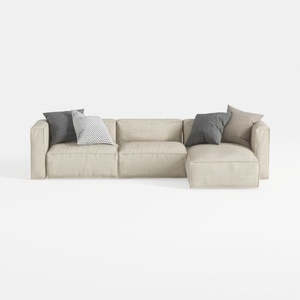
Minimalist Fabric L Shaped Sectional Sofa with Throw Pillows 3D Model
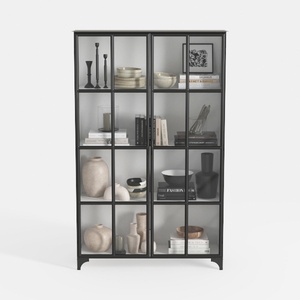
Triple Wide 5-Tier Bookshelf, 70.87" L x 79.13" H

Minimalist Fabric Loveseat Sofa with Round Decorative Pillows 3D Model
Homestyler offers an easy-to-use online design tool with stunning 3D renderings, a vast collection of interior projects, and helpful DIY video tutorials. It’s perfect for anyone looking to create and visualize beautiful home designs effortlessly.
지금 무료로 디자인하세요
































